Discover how the Customized Interventions module gives you total flexibility to model and track all the operations specific to your business (preparation, maintenance, repair, quality control, etc.) directly in K inventory.
1. In the left-hand menu, click on the Interventions.
2. Click on Create an intervention.
3. From the list of available models, select the desired intervention.

4. Complete the information on the page Creating an intervention :
- Title
- Start date
- End date
 Creating an intervention
5 (Optional) To remove a non-mandatory step, uncheck its check box.
6. To assign a task to a user or group of users, click on Assign tothen click on the icon.
icon.
7. Save your changes with the Save.
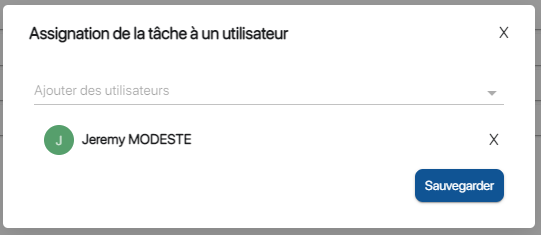 Selecting the account assigned to the task
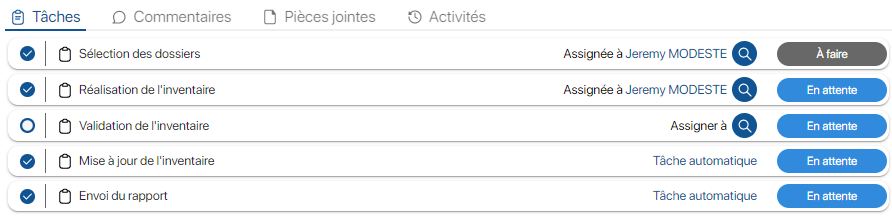 Result of creating an intervention
8. Save your changes with the Save.
To continue browsing, here are a few articles related to this page:

