The functionality Create user group ,feature on the K inventory online inventory management application, lets you group user accounts by assigning them access permissions to the platform’s features and folders.
With this feature, you can easily manage user rights and improve the security of your inventory.
1. In the menu on the left of the screen, click on Settingsthen on Groups.
2. In Group management, click on the Create group.
3. In the Information tabtab, complete the group name.
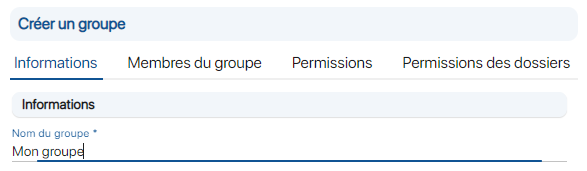 Creating a user group
4. In the Group memberstab, select one or more user accounts to add them to the group.
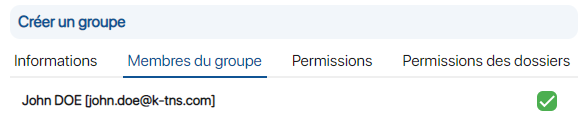
Account selection
5. In the Permissionstab, click on the checkboxes to assign feature access permissions for the group.
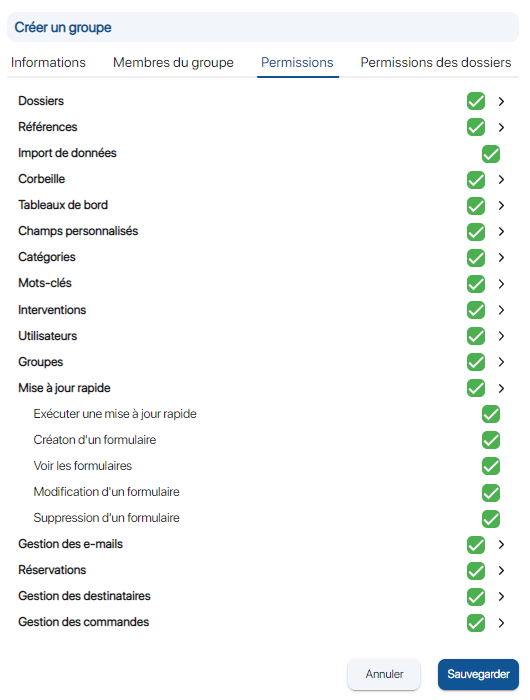 Manage rights to group functions and sub-functions
6. In the Folder permissionstab, click on the checkboxes to assign folder access for the
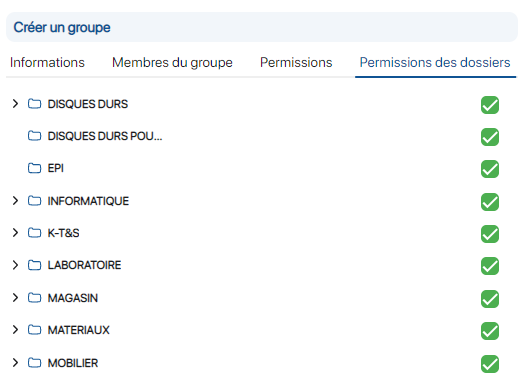
File selection
7. Save your changes with the Save.
To continue browsing, here are a few articles related to this page:

