The Business Rules module offers flexibility and customization, for example, in the management of references, files and intervetnions. It enables users to define business rules specific to their company, and to automate actions within the solution.
This feature is not available on the Mobile version.
1. In the menu on the left of the screen, click on Settings then on Business rules.
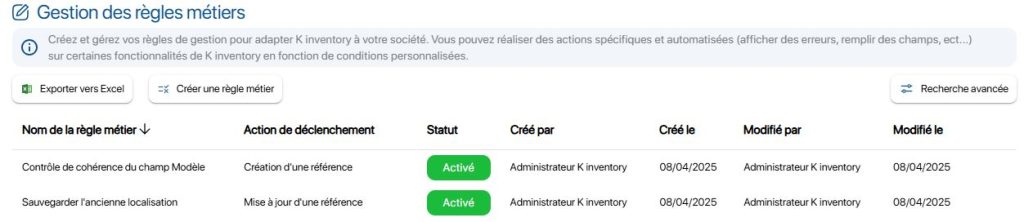 List of business rules
Click the Edit icon for the business rule you want to modify.
3. In Information, you can edit the Business Rule Name and the Trigger Action
List of available trigger actions :
- Folder: Creation or Modification
- Users: Creation or Modification
- Order: Create or Modify
- Intervention : Creation
- Reference : Creation or Modification
You can also Enable or Disable a business rule using the Status field.
A business rule with the Disabled status will no longer be applied, but you can reactivate it later if needed.
4. In the Conditions tab section Conditions tab, modify the information previously filled in when creating the business rule:
- New or a Old value : The update will be performed with respect to the old or new value.
- Field: Field selection field on which the business rule will be based
- Selection of application criteria
- Definition of the value to be applied
5. Go to Actions to be carried out, modify the actions previously entered, so that they are applied if the criteria defined in section Conditions section are validated:
- Type of action : selection of the action to be carried out if the criteria are validated
- Field : Field in which the action will be carried out
- Value : Value to be updated (not applicable if action type is Empty field)
List of available action types :
- Display an error
- Making it compulsory
- Update
- Empty the field
- Increment field
In the example below, we’re going to update a consistency check business rule on the relationship between the identifier and the brand of a piece of equipment.
6. Go to Informationcomplete the information required to modify your business rule:
- Business rule name : Brand field consistency check
- Trigger action : Create a reference
- Business rule status : Activated
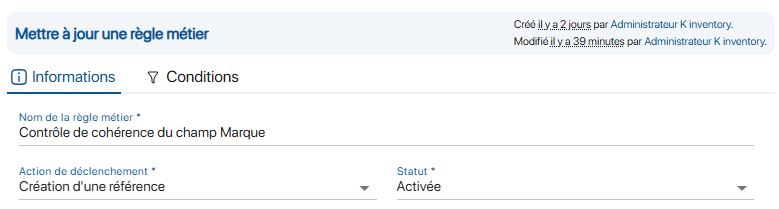 Business rule modification
7. In the Conditions tab section Conditions tab, complete the information required to define the business rule application criteria:
- New value
- Field selection: Identifier
- Criteria selection : Contains
- Value applied : DELL
8. Click on Add a condition to add a criterion:
- New value
- Select the relevant field: Brand
- Criteria selection : Does not contain
- Value applied : DELL
9. Go to Actions to be carried out, section, enter the actions to be taken if the criteria defined in the Conditions section are validated:
- Type of action : Display error
- Field : Identifier
- Value : Wrong value
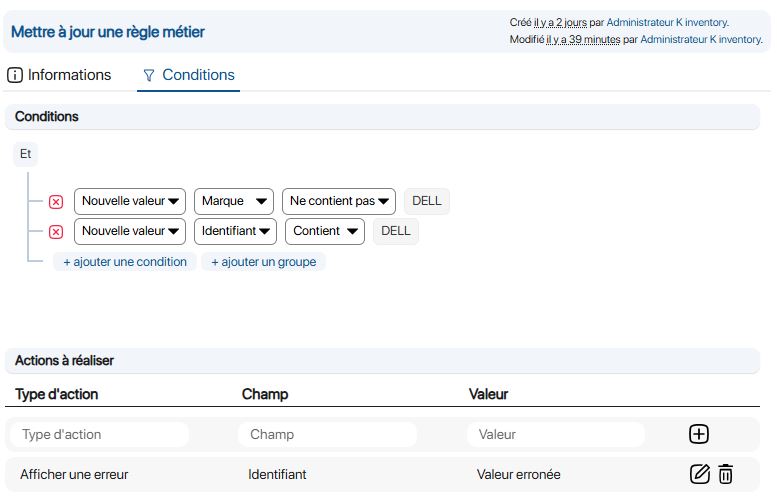 Modification of business rule conditions
In the example below, we’ll update the business rule to make a field mandatory in relation to the value of another field in a reference.
6. Go to Informationcomplete the information required to modify your business rule:
- Business rule name : Make the Description field mandatory if the Status value is “Destroyed”.
- Trigger action : Create a reference
- Business rule status : Activated
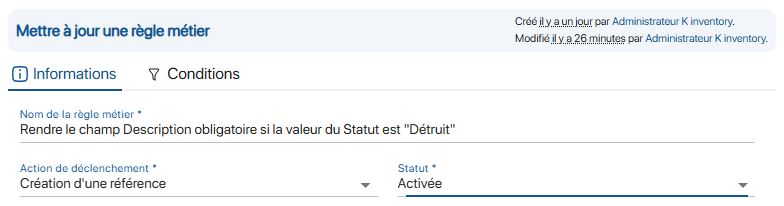 Business rule modification
7. In the Conditions tab section Conditions tab, complete the information required to define the business rule application criteria:
- Type of action : Make it mandatory
- Field: Description
- Value: No action required
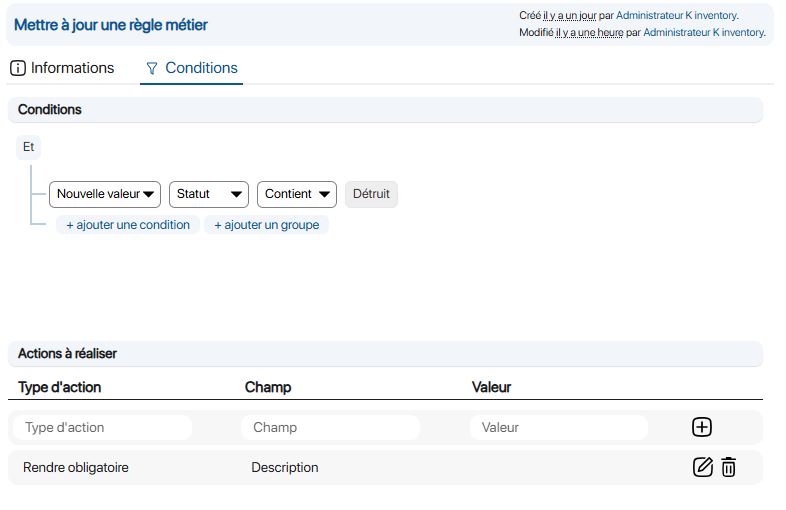 Modification of business rule conditions
-
Display a customized error message
-
In the example below, we’re going to update a consistency check business rule on the relationship between the identifier and the brand of a piece of equipment.
6. Go to Informationcomplete the information required to modify your business rule:
- Business rule name : Brand field consistency check
- Trigger action : Create a reference
- Business rule status : Activated
Business rule modification
7. In the Conditions tab section Conditions tab, complete the information required to define the business rule application criteria:
- New value
- Field selection: Identifier
- Criteria selection : Contains
- Value applied : DELL
8. Click on Add a condition to add a criterion:
- New value
- Select the relevant field: Brand
- Criteria selection : Does not contain
- Value applied : DELL
9. Go to Actions to be carried out, section, enter the actions to be taken if the criteria defined in the Conditions section are validated:
- Type of action : Display error
- Field : Identifier
- Value : Wrong value
Modification of business rule conditions
-
Make a field mandatory
-
In the example below, we’ll update the business rule to make a field mandatory in relation to the value of another field in a reference.
6. Go to Informationcomplete the information required to modify your business rule:
- Business rule name : Make the Description field mandatory if the Status value is “Destroyed”.
- Trigger action : Create a reference
- Business rule status : Activated
Business rule modification
7. In the Conditions tab section Conditions tab, complete the information required to define the business rule application criteria:
- Type of action : Make it mandatory
- Field: Description
- Value: No action required
Modification of business rule conditions
To continue browsing, here are a few articles related to this page:

