Functionality View a part numberfeature in the K inventory management application enables you to view all the information on your equipment.
Thanks to this functionality, you can efficiently monitor your stock and your equipment fleet, while consulting your essential data in an ergonomic way.
As a reminder, a reference can be of the following type Product or Type Equipment :
- A Product is a reference followed by its quantity
For example, a “Keyboard” product with a quantity of 150 in stock. - A Equipment is a reference which is treated as a unit
For example, a “Computer” equipment will be tracked by its serial number.
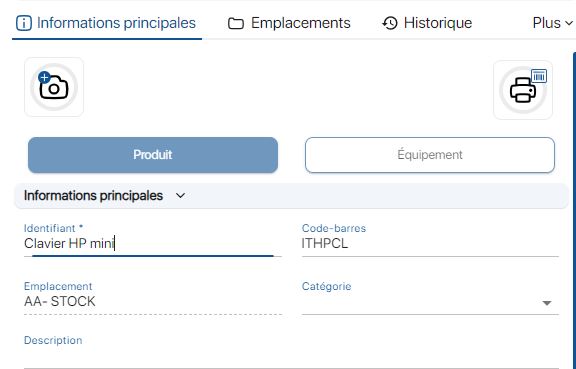
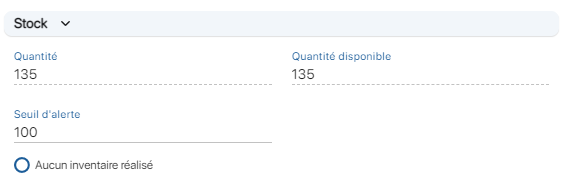
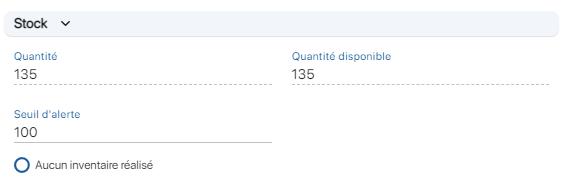
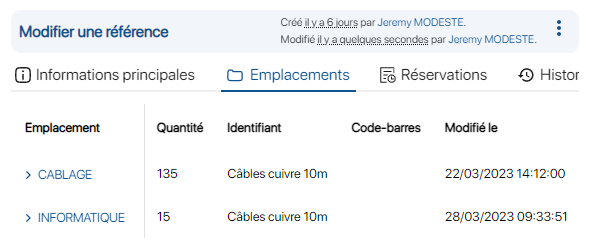
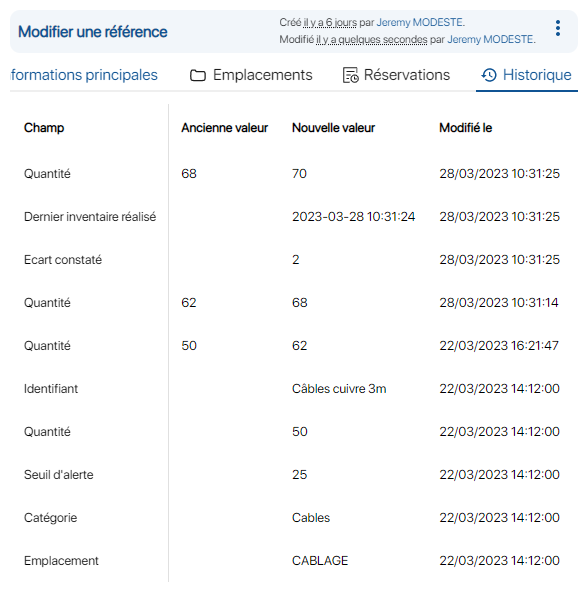
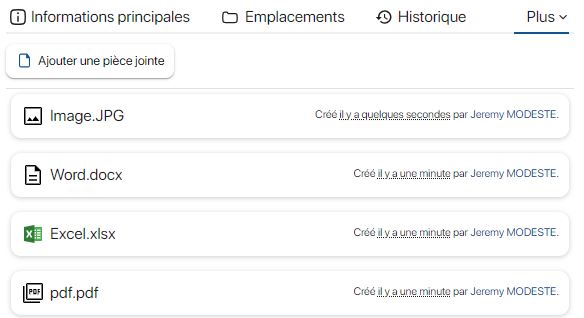
MAIN INFORMATION TAB 1. Click on the modify icon of a reference or click on its identifier, a pop-up window appears to modify the selected reference. View reference information – List of references Click the Add Photo icon to select an image and illustrate your reference form. View reference information – Reference sheet 3. Go to Main informationyou can view the following information: 4. In the Stocksection, consult the quantity data for the reference: View reference information – Stock 5. In the Custom Fields section, view the additional fields you have created. Example fields: View reference information – Custom fields LOCATIONS TAB The Location tab lets you consult the different locations of a product to optimize searches and, if necessary, move products to avoid unnecessary procurement. To view the product’s locations, click the Locations tab. View reference information – Locations 7. Click on the link of one of the locations to be redirected to the relevant folder and move the product. HISTORY TAB A history is available for each of the product and equipment reference files, enabling you to consult all the modifications made. 8. To view the changes made to a reference, click on the History tab. View reference information – Product history 9. It is possible to consult all the modifications made to each of the platform’s files: ATTACHMENTS TAB Each reference sheet (product and equipment) has its own tab. Attachmentsto complete and simplify the follow-up of your equipment by including, for example : 10. Click More to expand the additional available tabs, then click Attachments. View reference information – Attachments RESERVATIONS TAB This feature allows you to reserve quantities of products, isolating them and anticipating any stock shortages. 11. Click on View reference information – Booking 12. The following information is available for each reservation: VARIANTS AND LOTS TAB Customize the possible variations for each product to get a more precise view of your stock and make it easier to carry out your inventories. 13. Click on More to scroll down the available additional tabs, then click on Variants and Lots. 14. For each variant or batch, the following information will be available : ORDERS IN PROGRESS TAB This function allows you to view all the information relating to an order currently being processed for a product. 15. Click More to expand the additional available tabs, then click Ongoing Orders. View reference information – Orders in progress 16. The following information is available for each product: MAIN INFORMATION TAB 1. Click on a reference. 2. Click the Edit icon of a reference or click its identifier, a pop-up will appear allowing you to modify the reference. 3. Click the Add Photo icon to select an image and illustrate the reference form. 4. Go to Main informationyou can view the following data: 5. In the Stocksection, consult the quantity data for the reference: 6. In the Custom Fields section, view the additional fields you have created. Example fields:
MAIN INFORMATION TAB 1. Click on the modify icon of a reference or click on its identifier, a pop-up window appears to modify the selected reference. View reference information – List of references Click the Add Photo icon to select an image and illustrate your reference form. View reference information – Reference sheet 3. Go to Main informationyou can view the following information: 4. In the Stocksection, consult the quantity data for the reference: View reference information – Stock 5. In the Custom Fields section, view the additional fields you have created. Example fields: View reference information – Custom fields LOCATIONS TAB The Location tab lets you consult the different locations of a product to optimize searches and, if necessary, move products to avoid unnecessary procurement. To view the product’s locations, click the Locations tab. View reference information – Locations 7. Click on the link of one of the locations to be redirected to the relevant folder and move the product. HISTORY TAB A history is available for each of the product and equipment reference files, enabling you to consult all the modifications made. 8. To view the changes made to a reference, click on the History tab. View reference information – Product history 9. It is possible to consult all the modifications made to each of the platform’s files: ATTACHMENTS TAB Each reference sheet (product and equipment) has its own tab. Attachmentsto complete and simplify the follow-up of your equipment by including, for example : 10. Click More to expand the additional available tabs, then click Attachments. View reference information – Attachments RESERVATIONS TAB This feature allows you to reserve quantities of products, isolating them and anticipating any stock shortages. 11. Click on View reference information – Booking 12. The following information is available for each reservation: VARIANTS AND LOTS TAB Customize the possible variations for each product to get a more precise view of your stock and make it easier to carry out your inventories. 13. Click on More to scroll down the available additional tabs, then click on Variants and Lots. 14. For each variant or batch, the following information will be available : ORDERS IN PROGRESS TAB This function allows you to view all the information relating to an order currently being processed for a product. 15. Click More to expand the additional available tabs, then click Ongoing Orders. View reference information – Orders in progress 16. The following information is available for each product: MAIN INFORMATION TAB 1. Click on a reference. 2. Click the Edit icon of a reference or click its identifier, a pop-up will appear allowing you to modify the reference. 3. Click the Add Photo icon to select an image and illustrate the reference form. 4. Go to Main informationyou can view the following data: 5. In the Stocksection, consult the quantity data for the reference: 6. In the Custom Fields section, view the additional fields you have created. Example fields:

 to scroll down the available additional tabs, then click on Reservations.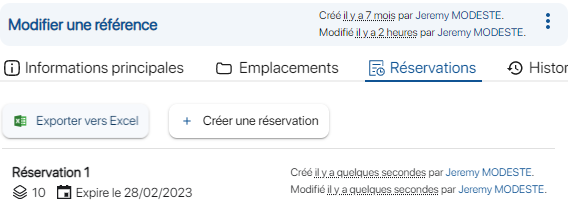
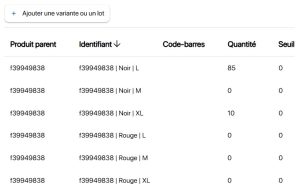 View a Reference’s Information – Variants and Lots

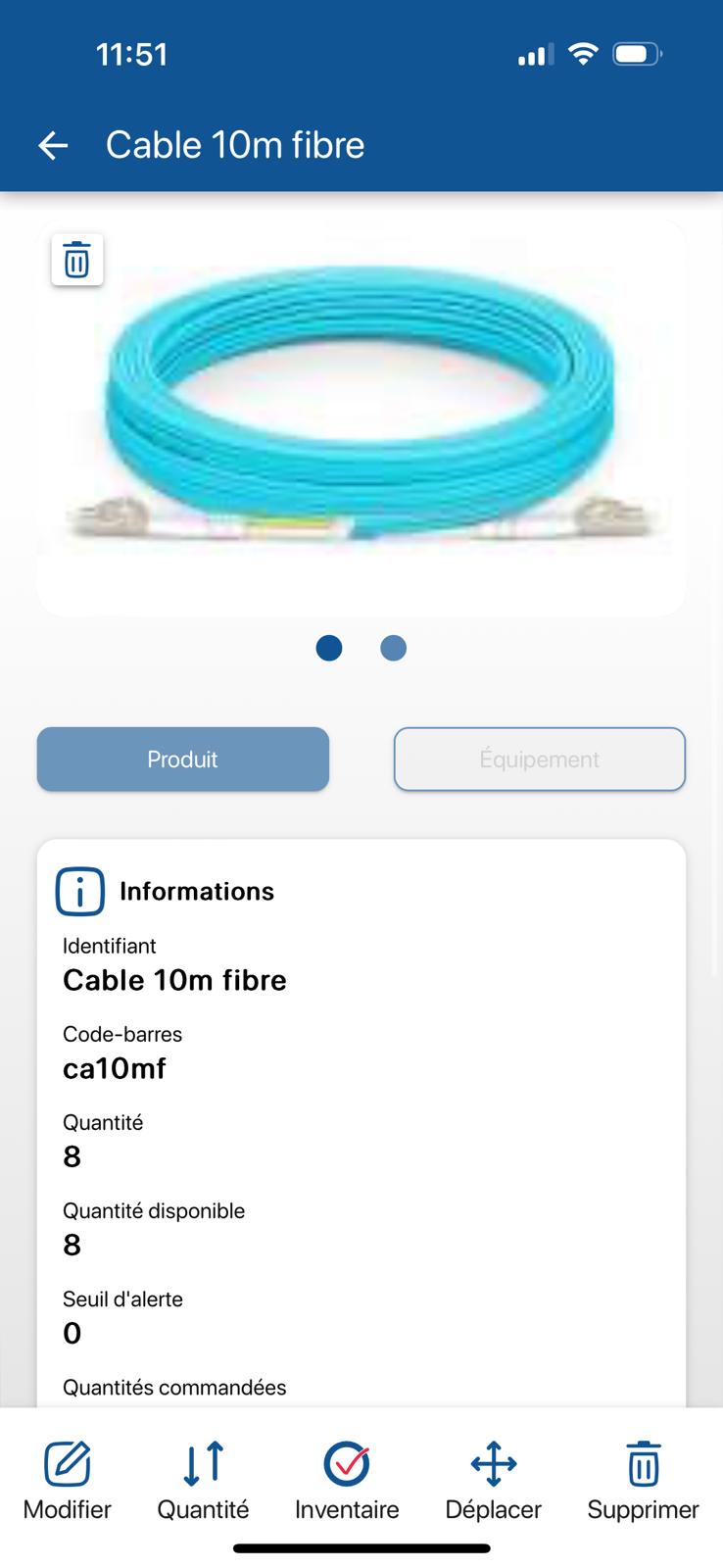 View reference information – Main information on the mobile platform
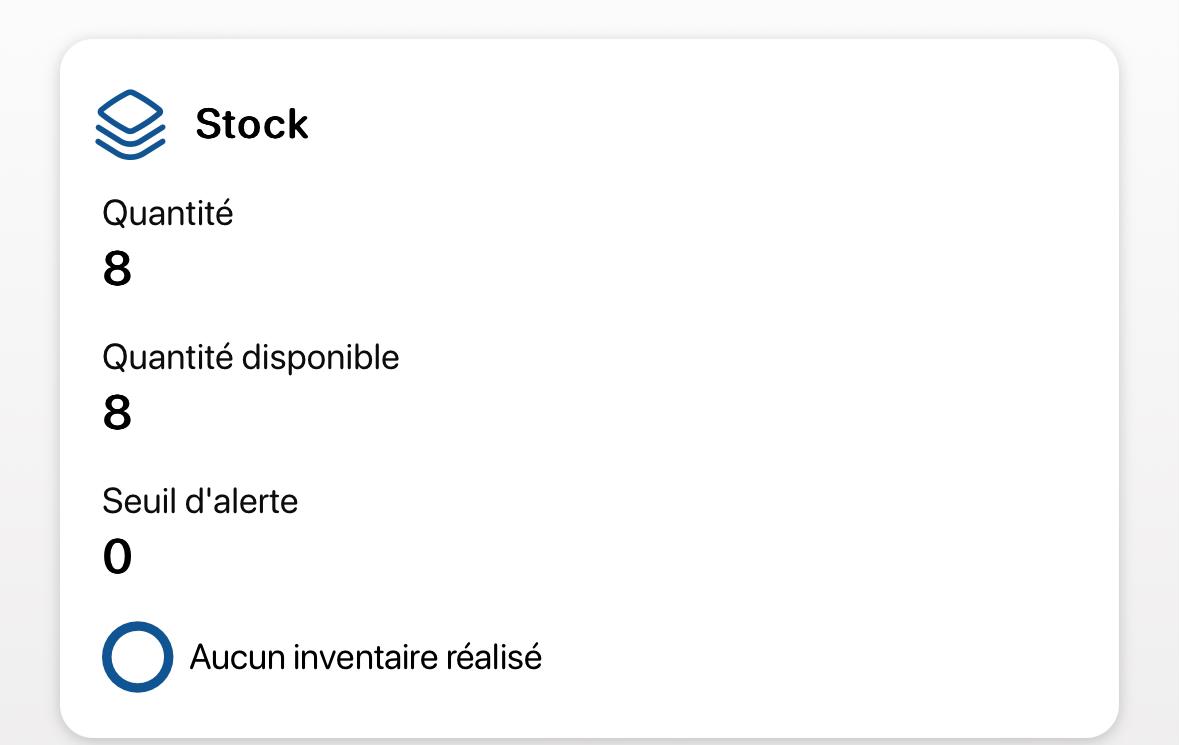 View reference information – Stock on mobile platform
to scroll down the available additional tabs, then click on Reservations.
View a Reference’s Information – Variants and Lots
View reference information – Main information on the mobile platform
View reference information – Stock on mobile platform
To continue browsing, here are a few articles related to this page:

