The functionality move a variant or lot in K inventory, allows you to move a specific product variant from your stock.
This operation is carried out individually for each product. You can also schedule an intervention to manage a large number of products.
1. Use the 2. In the Variant list section, click on the Move . 3. In the pop-up window Movepop-up window, click on the 4. Choose the destination folder, then click on the Select button to confirm. 5. Enter the quantity to be entered or issued manually or by scanning the barcode or variant or lot identifier. 6. Save your changes with the Save.
1. In the list of available products, click on a variant or batch. 2. Click on the Move button to perform a transfer. 3. In the Destinationblock, select the desired target folder by clicking on the 4. Choose the destination folder, then click on the Select button to confirm. 5. Enter the quantity to be entered or output manually or by scanning the barcode or variant or lot identifier, using the 6. Save your changes with the Save.
1. Use the 2. In the Variant list section, click on the Move . 3. In the pop-up window Movepop-up window, click on the 4. Choose the destination folder, then click on the Select button to confirm. 5. Enter the quantity to be entered or issued manually or by scanning the barcode or variant or lot identifier. 6. Save your changes with the Save.
1. In the list of available products, click on a variant or batch. 2. Click on the Move button to perform a transfer. 3. In the Destinationblock, select the desired target folder by clicking on the 4. Choose the destination folder, then click on the Select button to confirm. 5. Enter the quantity to be entered or output manually or by scanning the barcode or variant or lot identifier, using the 6. Save your changes with the Save.
 icon to scroll through the list of variants and lots available for a product.
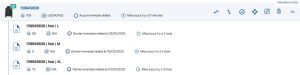 List of product variants and lots
 Make a move on a variant or lot
 icon in the Destination block to select the target folder.
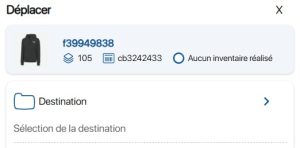 Destination selection
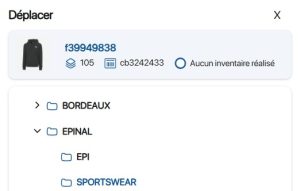 Destination selection
 Scan a barcode
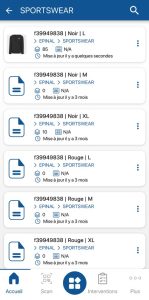 List of variants
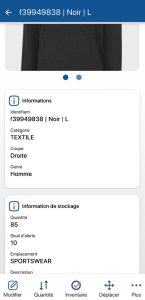 Variant or lot sheet icon.
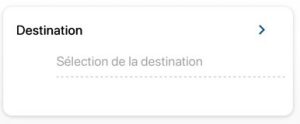 Destination selection
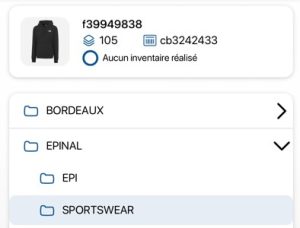 Destination selection
 icon.
icon.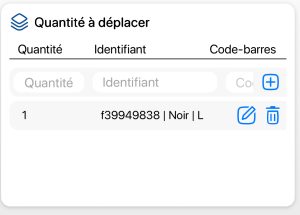 Moving a variant or lot icon to scroll through the list of variants and lots available for a product.List of product variants and lotsMake a move on a variant or lot icon in the Destination block to select the target folder.Destination selectionDestination selectionScan a barcodeList of variantsVariant or lot sheet icon.Destination selectionDestination selection icon.Moving a variant or lot
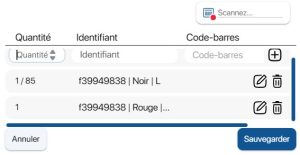 Multiple reference scanning
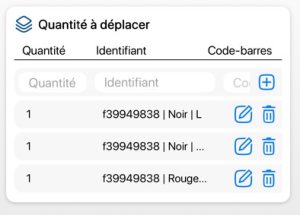 Multiple reference scanning
To continue browsing, here are a few articles related to this page:

