WooCommerce inventory management and order picking by scan for retail and e-commerce
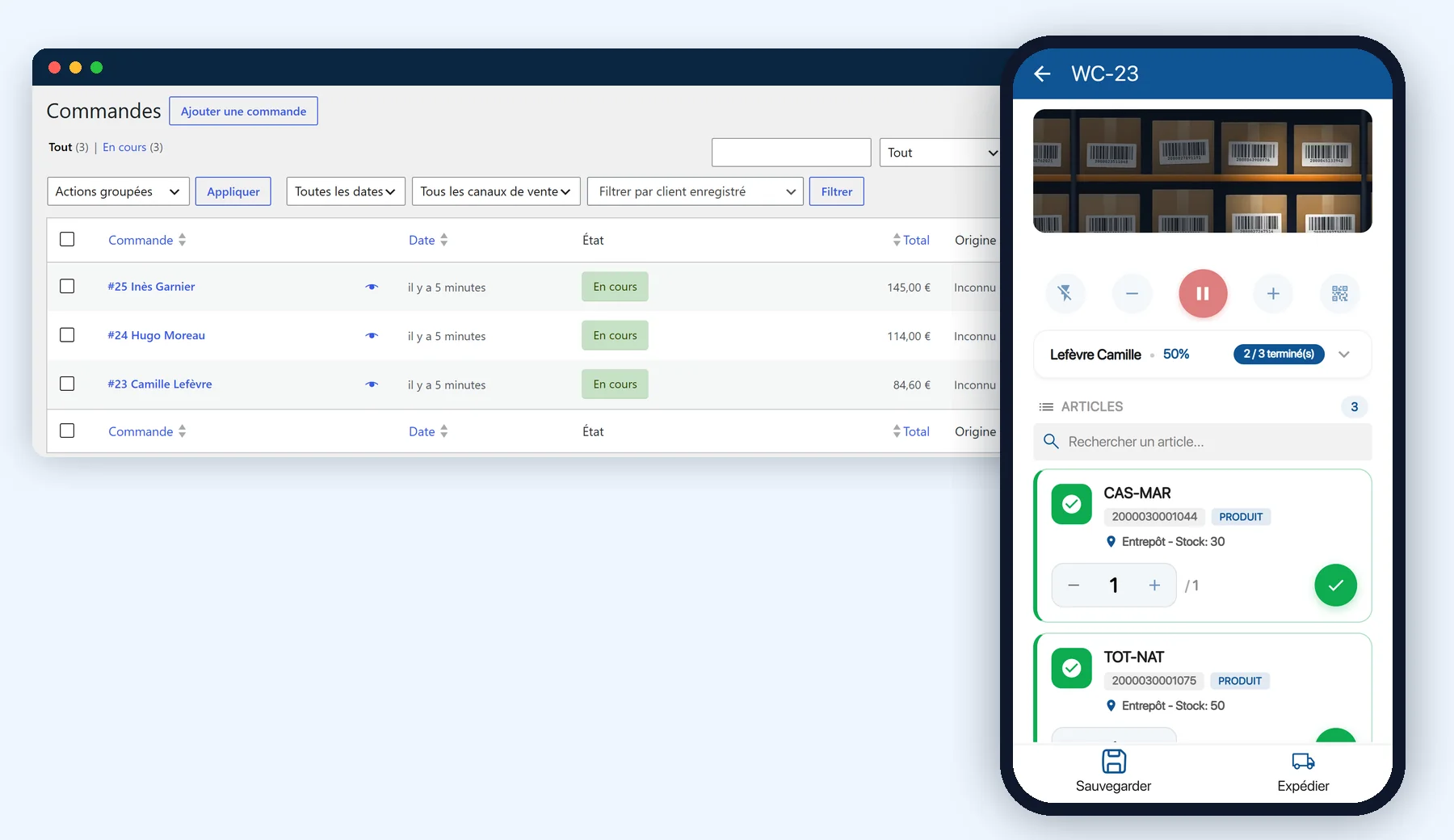
Your online orders arrive on the picker's phone, with the location of each product. The picker scans what they pick: a product that is not part of the order is rejected before it goes into the parcel. The stock kept in K inventory flows back to your WooCommerce shop.
What is at stake between the online order and the parcel
An online shop sells around the clock, but the stock sits on shelves. In between, every re-entry and every search for a product costs time and causes errors.
Selling a product that is out of stock
The shop shows stock that the warehouse no longer has. The customer pays, the order does not ship, and you have to apologise and refund.
The picking error
A wrong product in the parcel means a return, a reshipment and a disappointed customer. The check has to happen at the moment of picking.
Batches and dates
Cosmetics, speciality food: a product is tracked by batch and by expiry date. A spreadsheet does not tell you which batch is on which shelf.
Scattered stock
Two warehouses, a stockroom, shops: when stock lives in several places, you need to see it location by location to count it and move it.
Every order picked by scan, on the phone
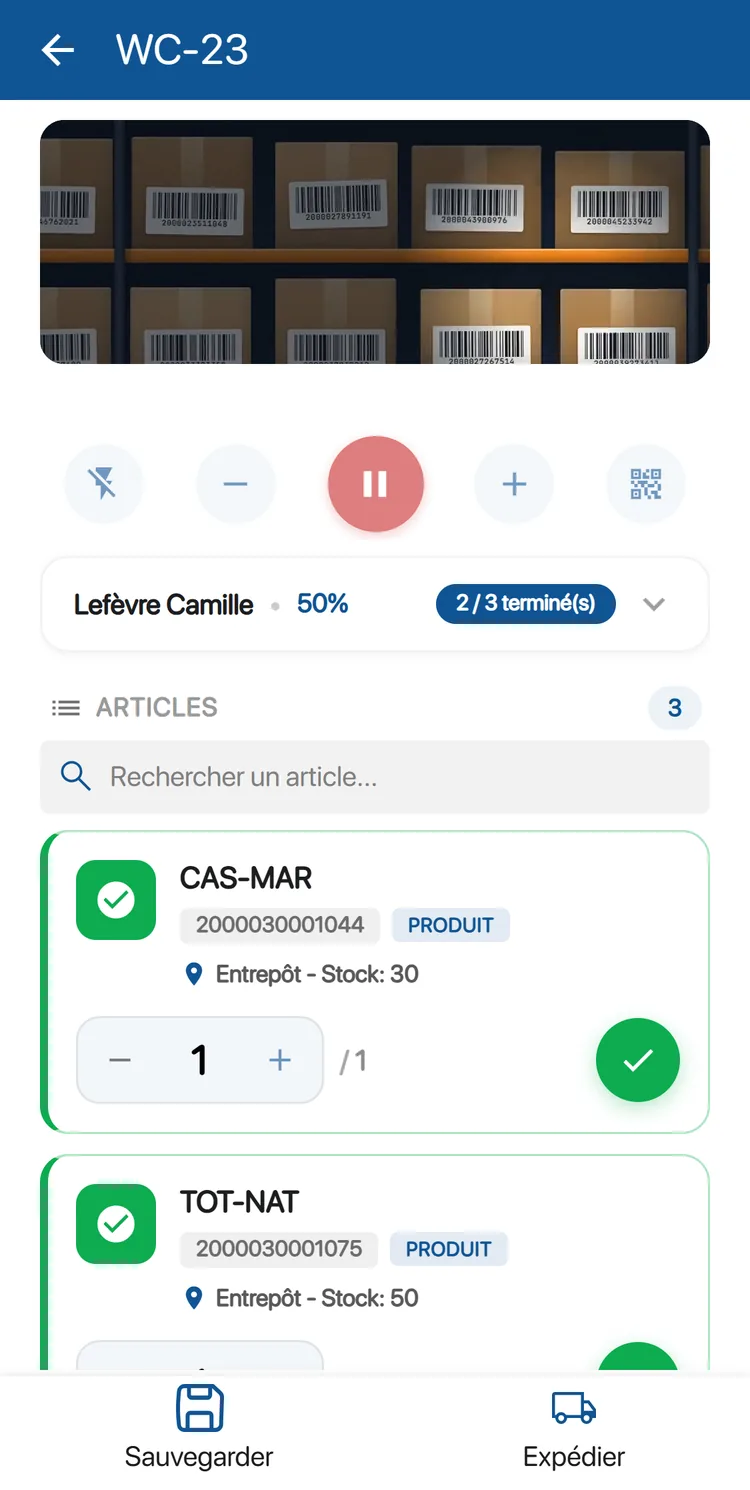
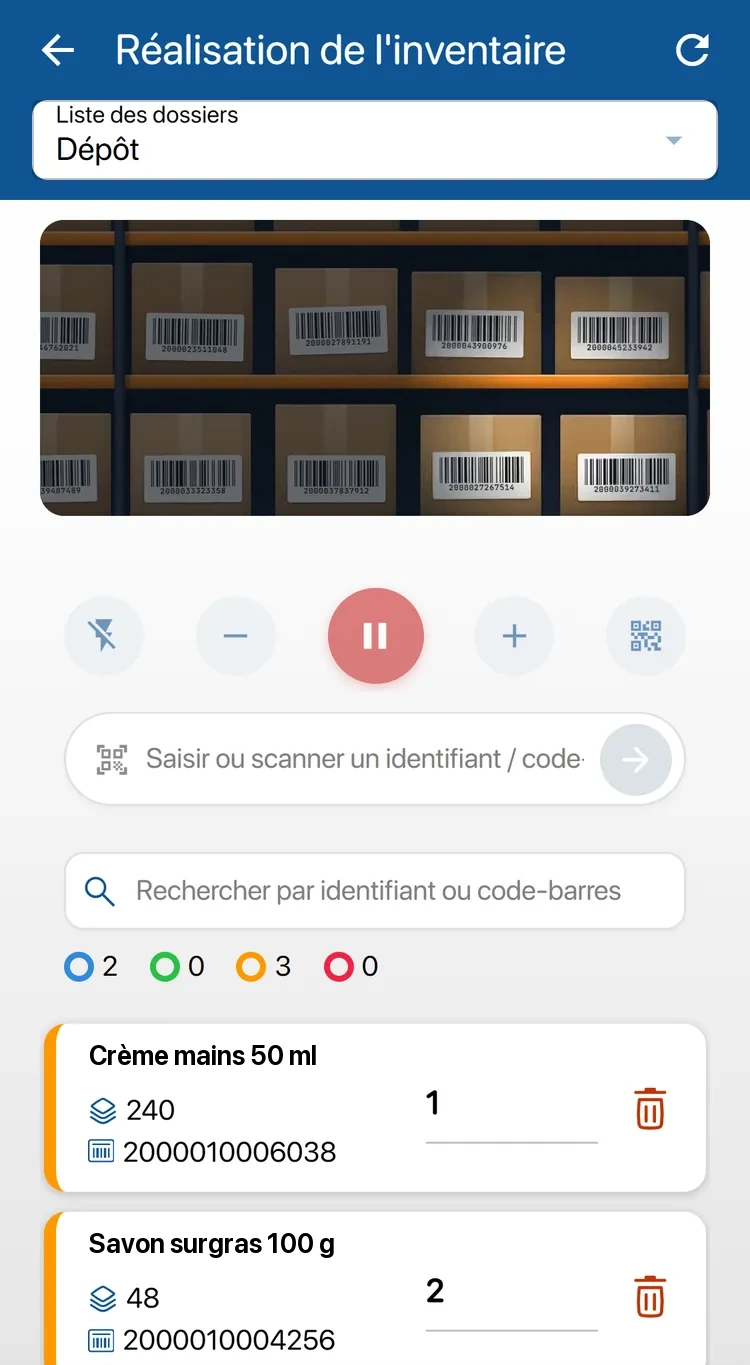
Orders from the shop arrive in the K inventory mobile app, ready to pick. For each product, the picker sees its barcode and its location, then scans what they pick.
The phone camera stays open: each scan counts one picked product, with no handheld scanner to buy
A code that is not part of the order is rejected with an error sound, before the product goes into the parcel
A partly picked order can be saved: it stays in progress and can be resumed later
Ship one order, or several at once with a long press
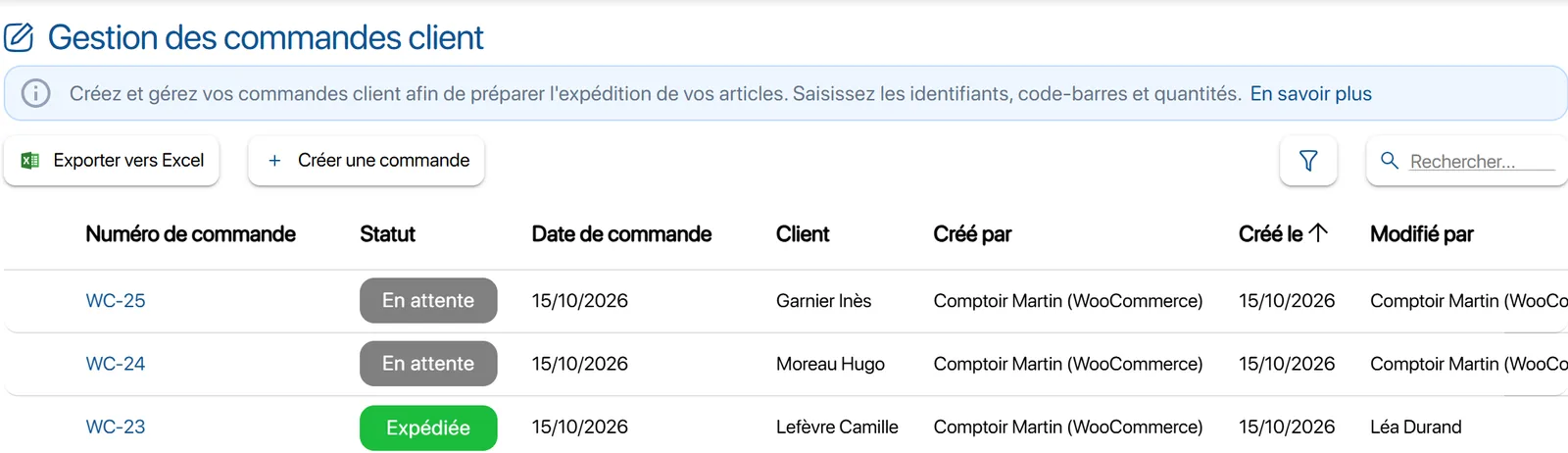
Once the order has shipped, its status flows back to WooCommerce
Your WooCommerce shop connected to your stock
The K inventory for WooCommerce plugin can be downloaded free of charge from WordPress.org. The connection to your stock is part of the Custom plan; the 14-day free trial lets you test it on your shop.
| When… | What happens |
|---|---|
| An order moves to “Processing” in WooCommerce | A customer order is created in K inventory, ready to pick. The quantity is spread across the locations that hold the product, the fullest first. |
| The order is modified | It is updated as long as it is waiting to be picked. Once picking has started, nothing is sent and a note informs the shop. |
| The order is cancelled, refunded or deleted | It is cancelled: the reserved stock is released and the history is kept. An order that has already shipped is left untouched. |
| A product is created or modified in the shop | The item is created or updated. The shop's stock sets the initial quantity, then K inventory keeps the stock. |
| Stock changes in K inventory | The quantity flows back to the WooCommerce shop. |
Simple products and variations are synchronised. The identifier (the SKU by default) and the barcode (GTIN, UPC, EAN or ISBN by default) are chosen in the plugin settings. The picking status comes back to the WooCommerce order as a note, every fifteen minutes.
Connect WooCommerce to K inventory in three steps
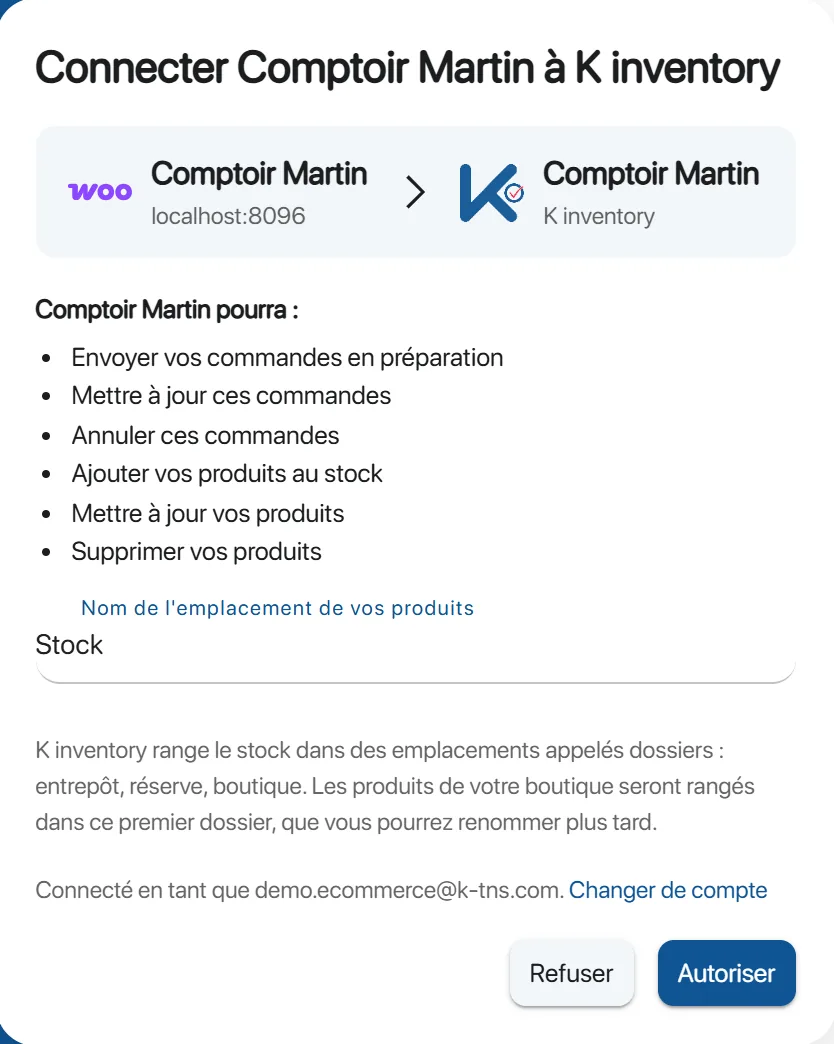
No key to copy, no development: you sign in, you authorise the shop, and the plugin sets itself up.
Install the plugin
In WordPress: Plugins, Add New Plugin, then search for “K inventory for WooCommerce” and activate it.
Connect the shop
Sign in to K inventory with your email or with Google, or start the 14-day free trial from the plugin. You choose the location of your products, then you authorise the shop.
Send your products
One click on “Send my products to K inventory”, just once. After that, every product change and every order follows by itself.
A single stock for your warehouses, stockrooms and shops
In K inventory, each warehouse, stockroom or shop is a location, called a folder. Online sales stock and shop stock are tracked in the same place, location by location.
Batches and expiry dates tracked on each item
Goods received by scan when a delivery arrives, checked against the supplier order
Transfers from one warehouse to another or to a shop, tracked from preparation to receipt
Cycle count on the phone, aisle by aisle, without closing the warehouse or the shop
Permissions by location: each team only sees the stock of its own site
See stockouts coming instead of suffering them
Alerts before stockouts
A low-stock threshold per item and per location. The threshold set in the shop is carried over when the item is created.
Dashboards
Dashboards you build yourself: stock by warehouse, stock in and out over the period. Excel export and scheduled sending.
History of every movement
Receipt, picking, transfer, inventory: every movement is time-stamped in the activity log, with the person who made it.
WooCommerce, PrestaShop, Odoo, Magento: your shop connected to your stock
WooCommerce
The K inventory for WooCommerce plugin, free on WordPress.org: orders, products, stock and picking status synchronised.
PrestaShop
The PrestaShop connector sends your orders for picking and adds your products to the stock, with the same authorisations as WooCommerce.
Odoo
The Odoo connector links your Odoo orders and products to the stock kept in K inventory.
Magento 2 and others
For Magento 2 and other platforms, the K inventory API connects your shop to your stock.
Connections with an online shop are part of the Custom plan.
Three ways to sell, one stock
Direct-to-consumer brand
A cosmetics brand sells through its WooCommerce shop. Products are tracked by batch and by date, orders are picked by scan, and the shop shows the stock that is actually available.
Shops and online store
Each shop and its stockroom are locations. Online orders take stock from wherever it is, and transfers between the warehouse and the shops are tracked.
Several warehouses
An order is spread across the locations that hold the product, the fullest first. Cycle counts keep stock accurate on every site.
Frequently asked questions from online retailers
Is K inventory more expensive than a WooCommerce stock plugin?
A stock plugin keeps a counter in the shop. K inventory is complete inventory management software: order picking by scan on the phone, several warehouses and shops, batches and expiry dates, cycle counts, unlimited users. The WooCommerce connection is part of the Custom plan, quoted on request. You can test it free of charge for 14 days before deciding.
How much does K inventory cost above 1,000 items?
The listed plans go up to 1,000 items: Essential at €175 per month for up to 500 items, Advanced at €390 per month for up to 1,000 items. Beyond that, and as soon as you connect your shop, the Custom plan is quoted on request. An item is one record in one location: the same product stored in two warehouses counts as two items.
Does the stock in K inventory flow back to the WooCommerce shop?
Yes. K inventory keeps the stock, spread across your locations, and the quantity flows back to the shop. That way you avoid selling a product that is no longer available. This connection is part of the Custom plan.
How do you connect a WooCommerce shop to K inventory?
Install the K inventory for WooCommerce plugin from WordPress, then click “Connect to K inventory”. You sign in with your email or with Google, you authorise the shop, and the plugin sets itself up. All that is left is to click “Send my products to K inventory” once: after that, every change follows by itself.
What happens when an order is modified or cancelled?
As long as the order is waiting to be picked, changes to lines, quantities or addresses are carried over to K inventory. An order that is cancelled, refunded or deleted is cancelled in K inventory, which releases the reserved stock and keeps its history. An order that has already shipped is left untouched.
Does K inventory work with PrestaShop, Odoo or Magento?
Yes. WooCommerce, PrestaShop, Odoo, Magento 2 and other platforms connect to your stock through our no-code API module, with no development on your side. These connections are part of the Custom plan.
Can we also manage the stock of a physical shop?
Yes. In K inventory, each shop, stockroom or warehouse is a location, called a folder. Stock is tracked location by location, moved from one site to another and counted by cycle count, from the mobile app.
How your items are counted: a product managed by quantity counts as a single item per location, however many batches it contains. The same product stored in two warehouses therefore counts as two items.
Retail and e-commerce on our blog
Inventory management in e-commerce, WooCommerce integration, omnichannel distribution, returns: find our publications on online and in-store retail.
K inventory also adapts to other industries
Discover how K inventory meets the specific constraints of each sector.




Connect your shop to your stock
Install the plugin, connect your shop and pick your first orders by scan, during the 14-day free trial.
Enjoy a 14-day free trial of K inventory!
When you sign up, you can use all the features of K inventory for 14 days.
Contact us
Would you like us to contact you? Enter your email address below!