The mobile app that simplifies your field operations: equipment fleet management, maintenance and inventory management
More than an inventory management mobile app: with K inventory, you also track your equipment fleet and carry out your operations, maintenance included. It is the field side of a complete solution, managed from the web platform. And your operations carry on without a network.


On iOS and Android, in French and English. The phone camera is all you need, no scanner to buy. Trial with no commitment and no credit card, K inventory account required.
A complete solution, web and mobile
The web platform configures and manages, the app executes in the field. The free trial gives you access to both.
Operations built around your needs
Maintenance, inspection, installation: you create your templates on the web, the operator carries them out on the phone.
Basement, stockroom, remote worksite: your tasks carry on without a network and are sent once you are back online.
Your phone becomes a code reader and a data entry tool: create an item from a photo
To create an item in K inventory, take a photo of the object: the AI identifies the item and the record opens pre-filled, ready for you to check before saving. The AI suggests the name and fills in the fields of your record, custom fields included.
 Your item is being created...
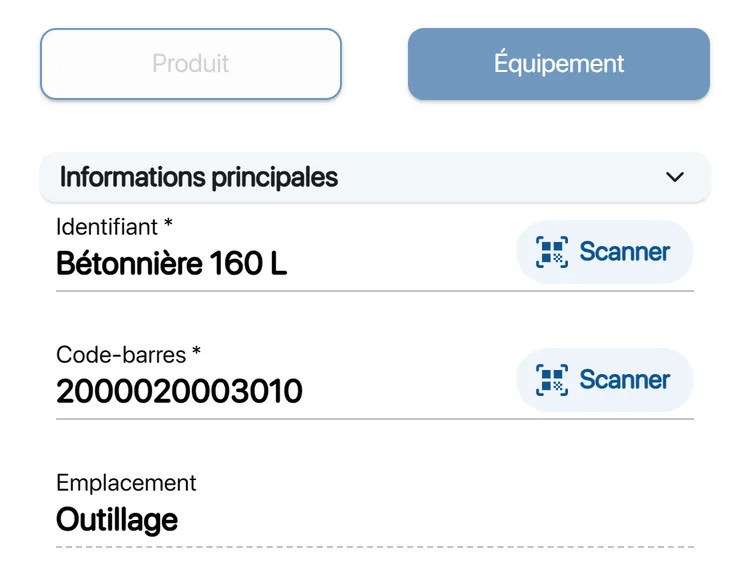
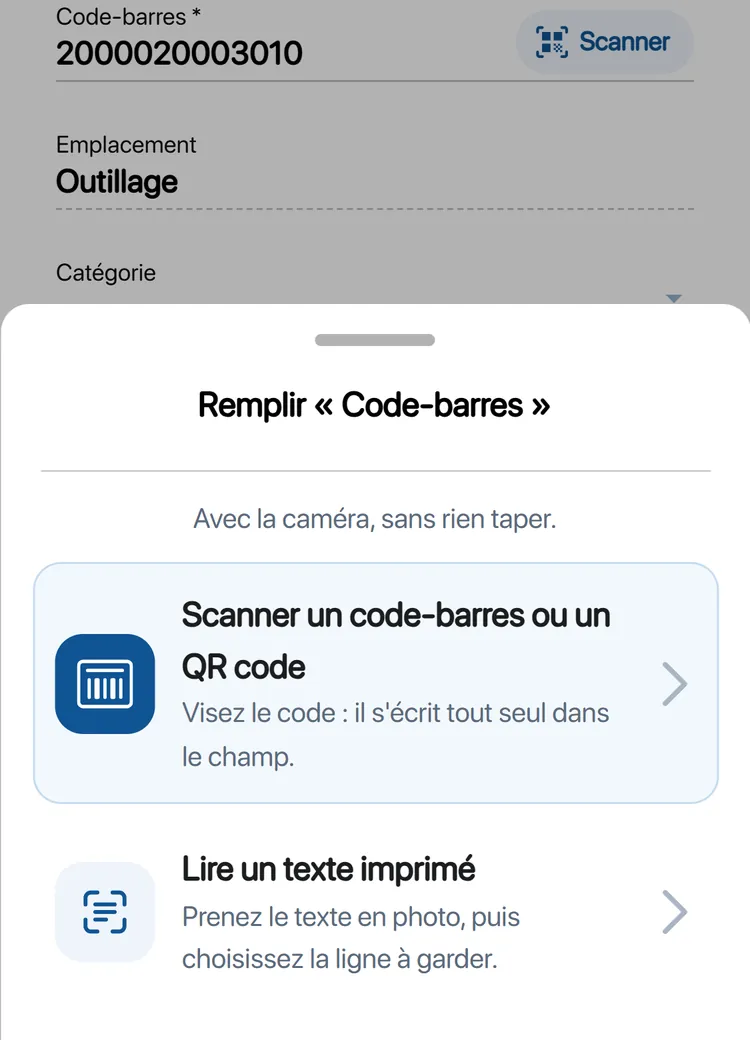
A field to fill in? Scan it, no typing
The Scan button sits next to the fields. Aim at a barcode or a QR code: it fills itself in. Or take a photo of printed text, then choose the line to keep. Text recognition happens on the phone.
Looking for an item already in stock? Take a photo of the object to find its record.
Creation and search by photo are modules enabled depending on your plan.
Find one label among dozens, with the camera
To find a label, enter its code, then sweep the shelf with the camera: K inventory highlights the right code in green and all the others in red. The search works with a barcode as well as with a QR code.
Barcode and QR code scanning with the camera
K inventory reads Code 128, Code 39, Code 93, Codabar, EAN-13, EAN-8, ITF, UPC-A, UPC-E, QR code, Data Matrix, Aztec and PDF417 codes, directly on the phone. The code you search for is the barcode's code, not the name written on the label. The search shows you the label: it does not open the record and does not show the location.
Your field operations, one task after another
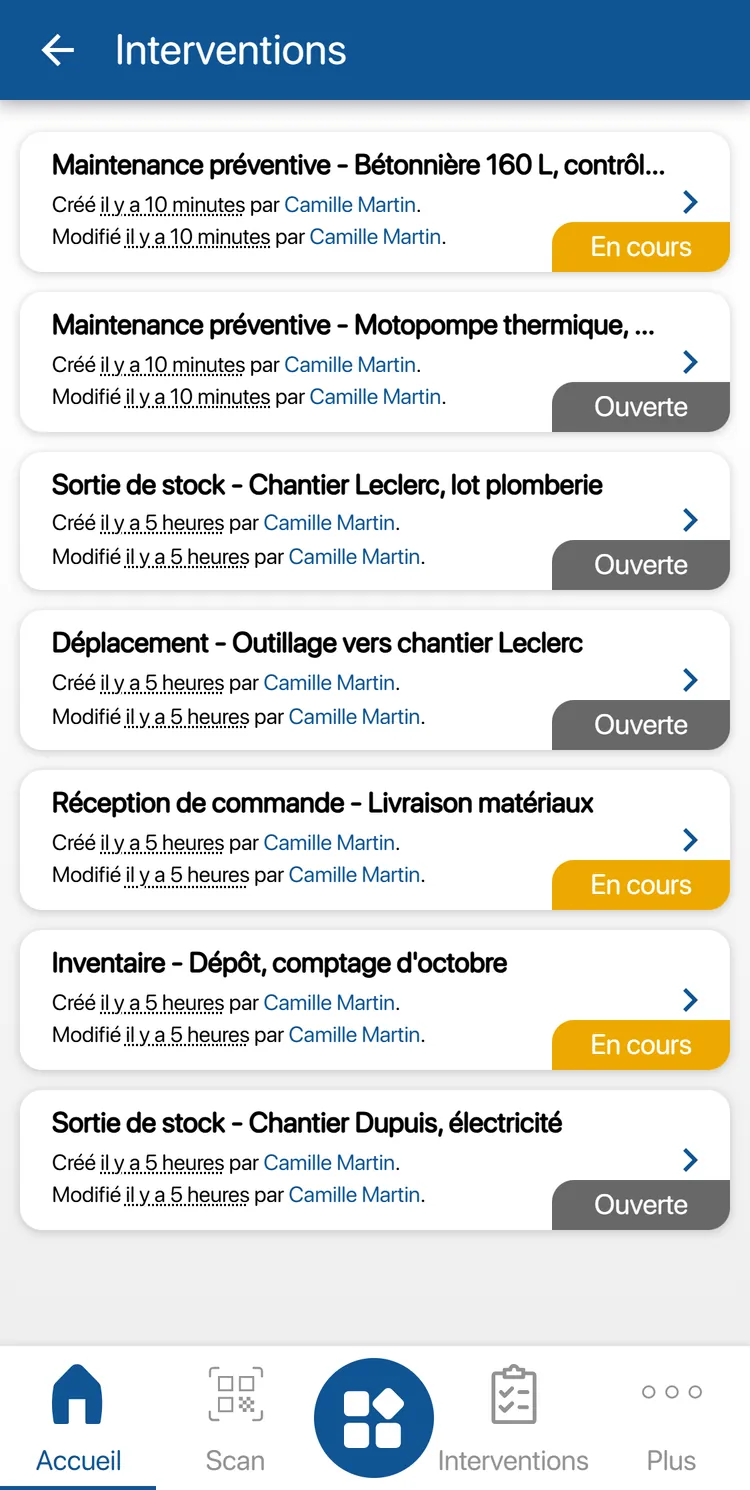
In K inventory, an operation is a sequence of tasks prepared on the web platform and carried out in order, on the phone. Five are ready to use, and you can create your own.
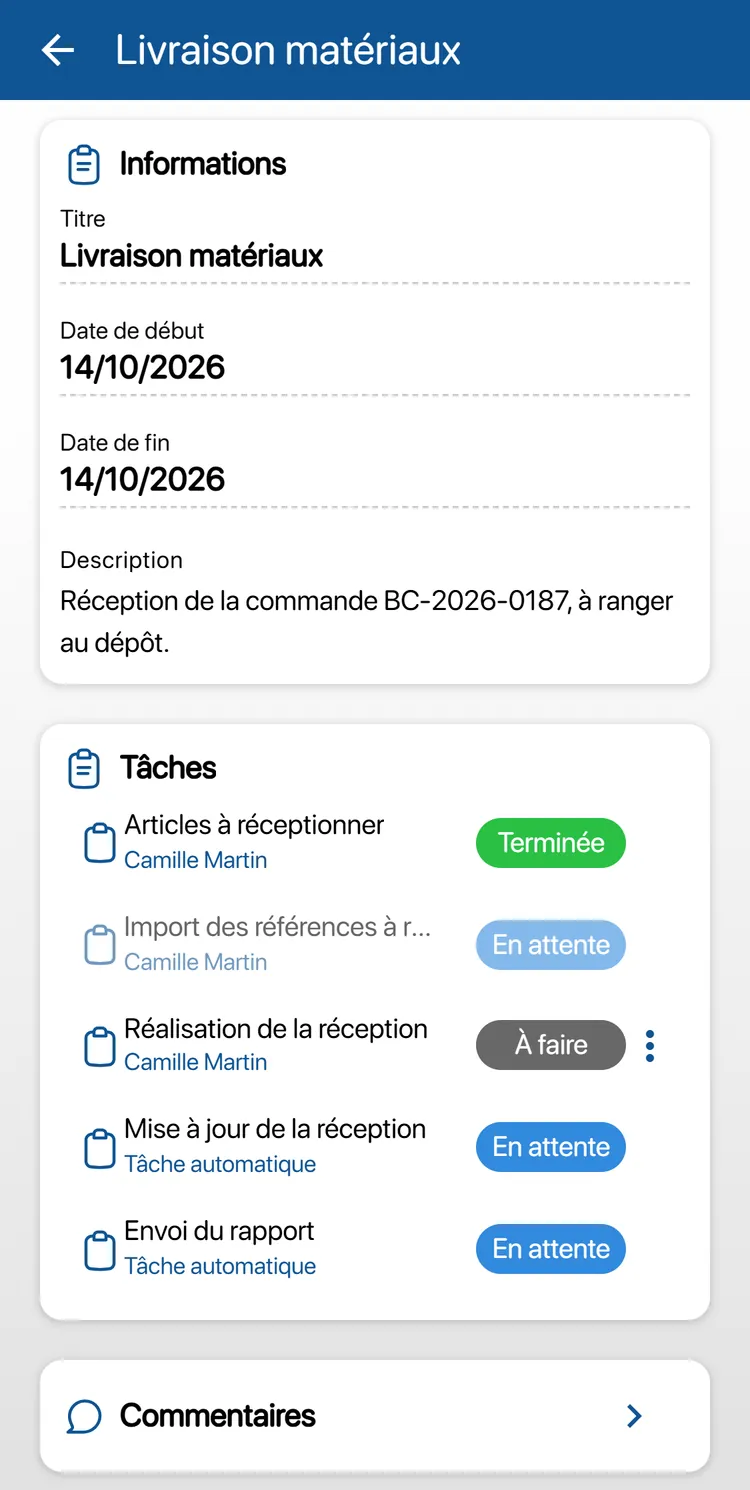
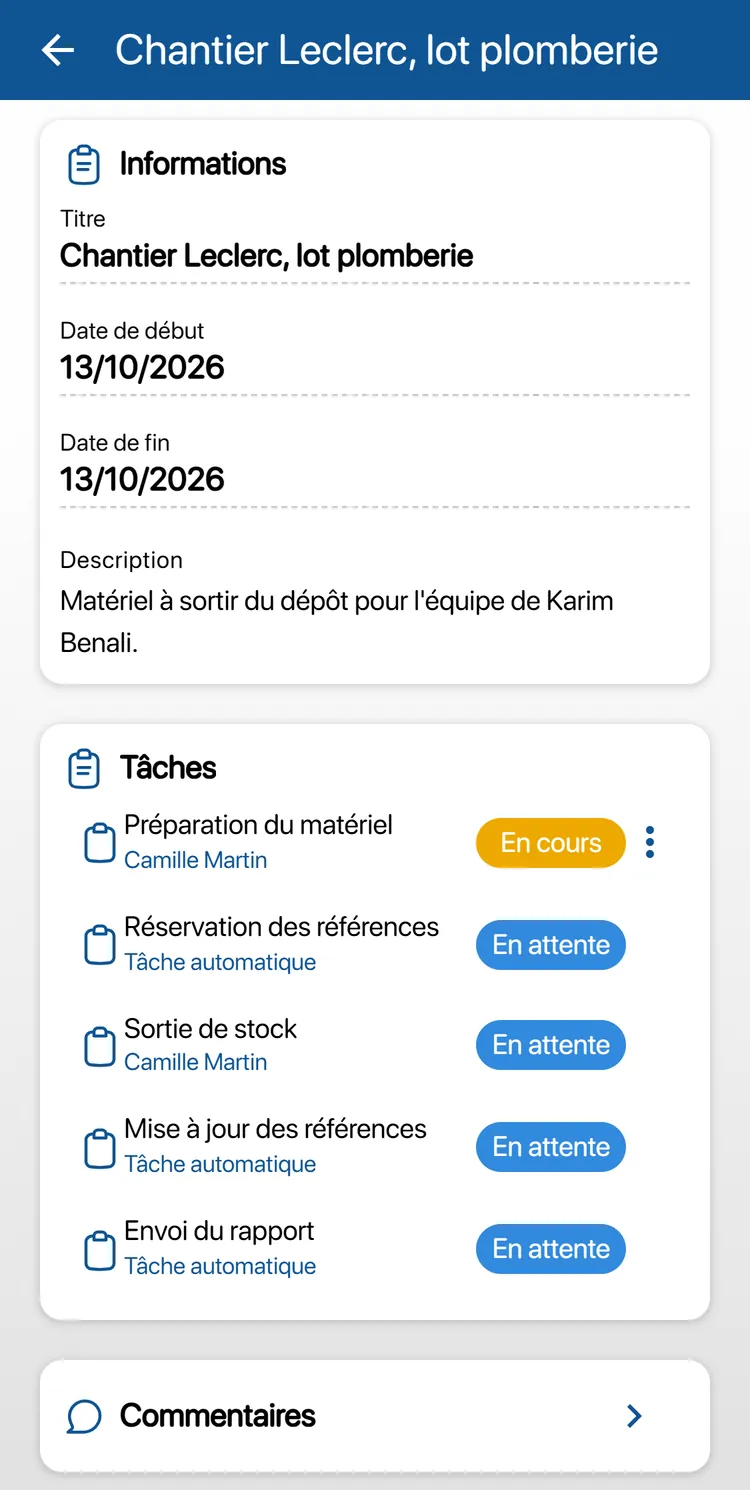
Into stock or into the equipment fleet
Equipment arrives: you scan what is delivered against the purchase order, and it enters your stock or your equipment fleet. In the app, this operation is called “Receipt of order”.
- Items to receive: On the web platform
- Import of the items to receive: Optional
- Carrying out the receipt: You, on the phone
- Receipt update: Automatic
- Report sent: Automatic
Stock out
Equipment leaves the depot for a team. Example: “Leclerc worksite, plumbing package”.
- Equipment preparation: You, on the phone
- Item reservation: Automatic
- Stock out: You, on the phone
- Item update: Automatic
- Report sent: Automatic
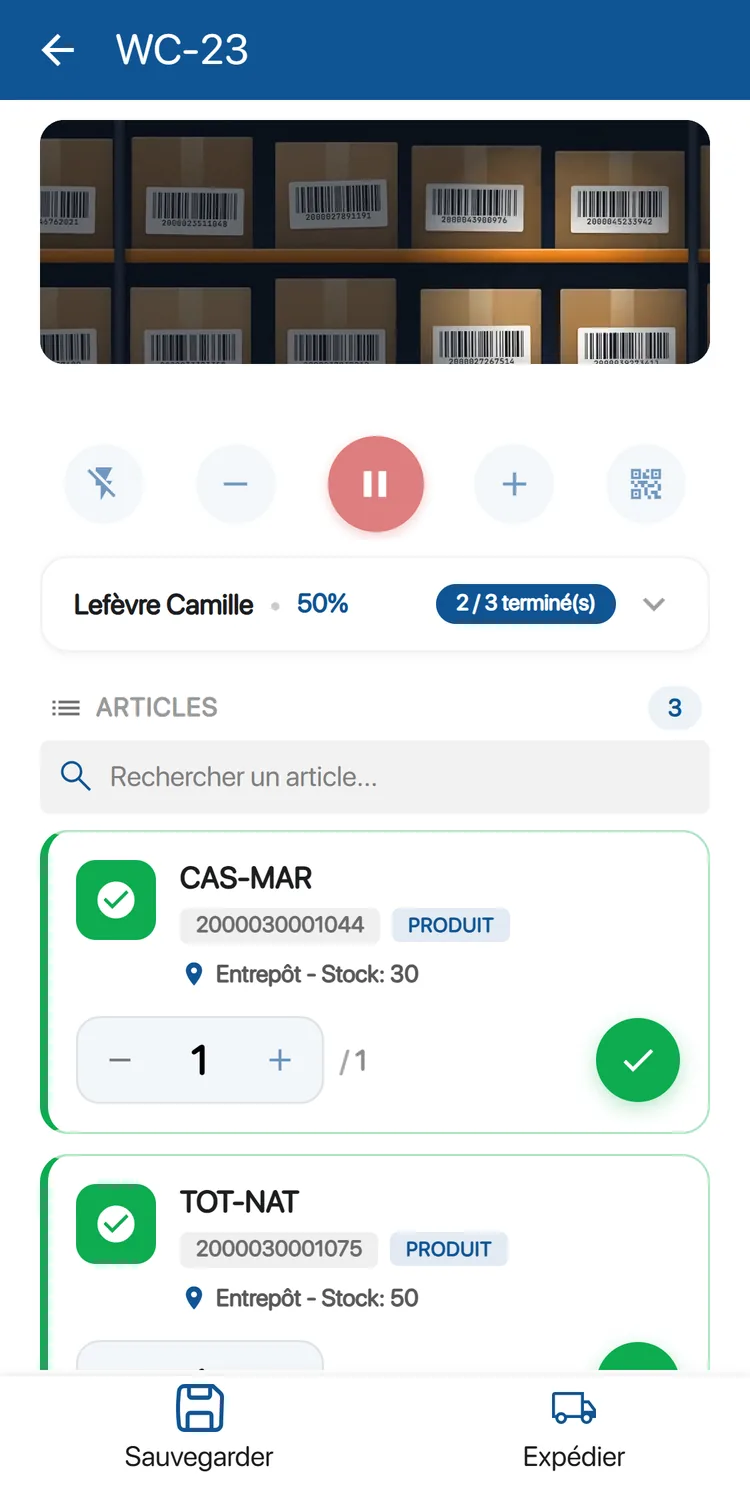
Order picking, checked by scanning
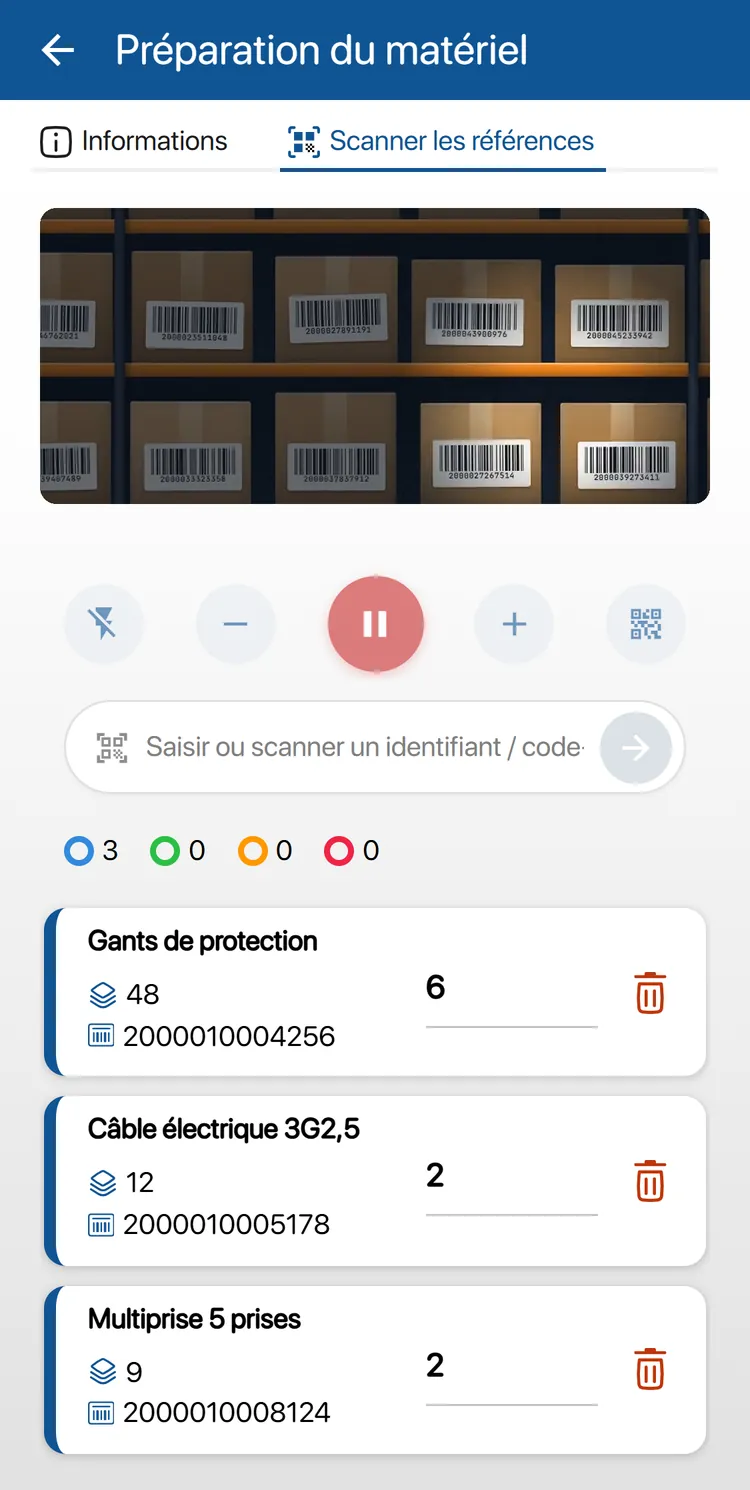
To prepare a customer order, scan the items continuously: K inventory counts the items picked and rejects any code that is not part of the order. Orders come from the web platform or from your connected shop, WooCommerce for example.
2000010004256: Item picked2000020001108: This item is not part of the order2000010008124: Choose the location2000010006038: Item already fully picked
Save a partial preparation: the order stays in progress and the app keeps what has already been prepared.
One order, or several at once with a long press.
Customer orders are a module enabled depending on your plan. See the plans and their modules
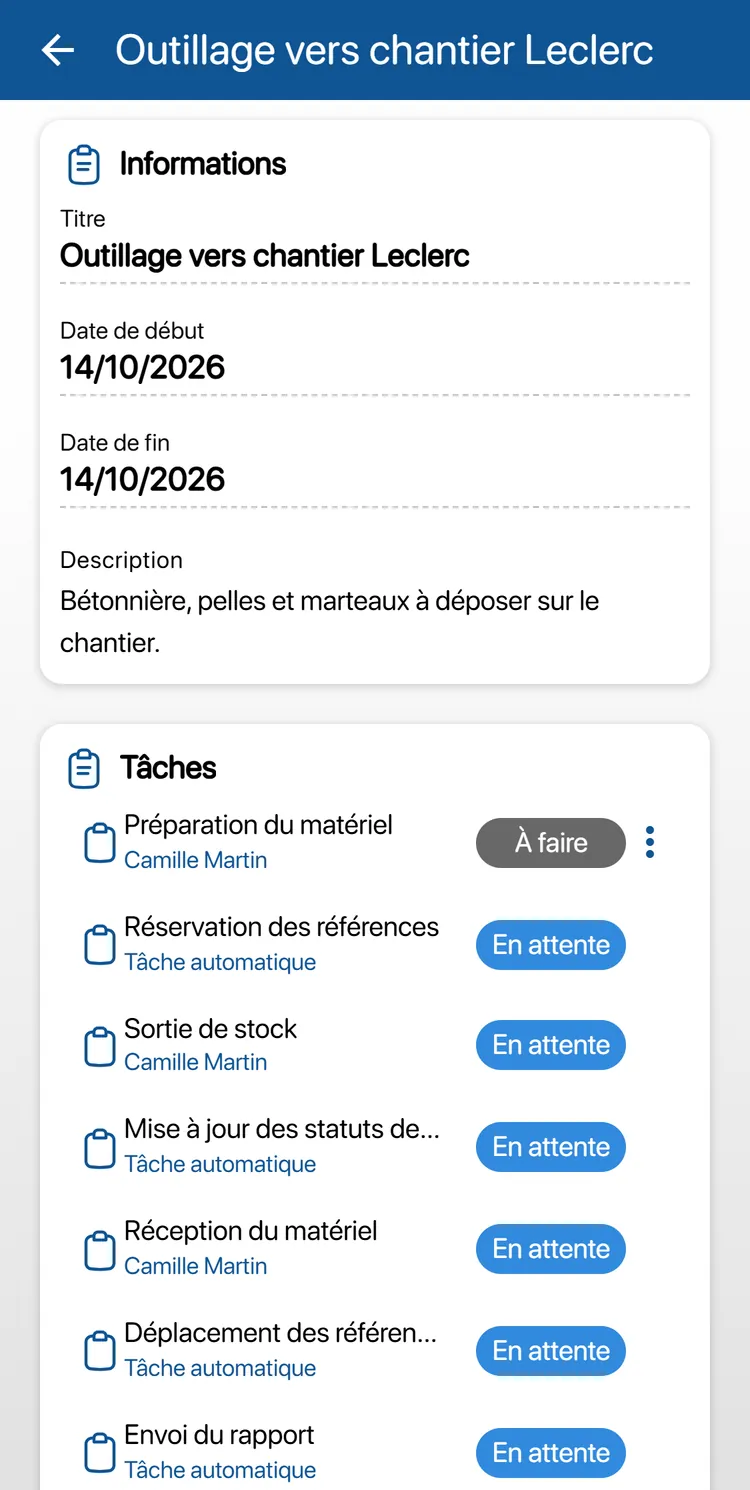
Move
Equipment changes site, from preparation to receipt. Example: “Tools to Leclerc worksite”.
- Equipment preparation: You, on the phone
- Item reservation: Automatic
- Stock out: You, on the phone
- Item status update: Automatic
- Equipment receipt: You, on the phone
- Item move: Automatic
- Report sent: Automatic
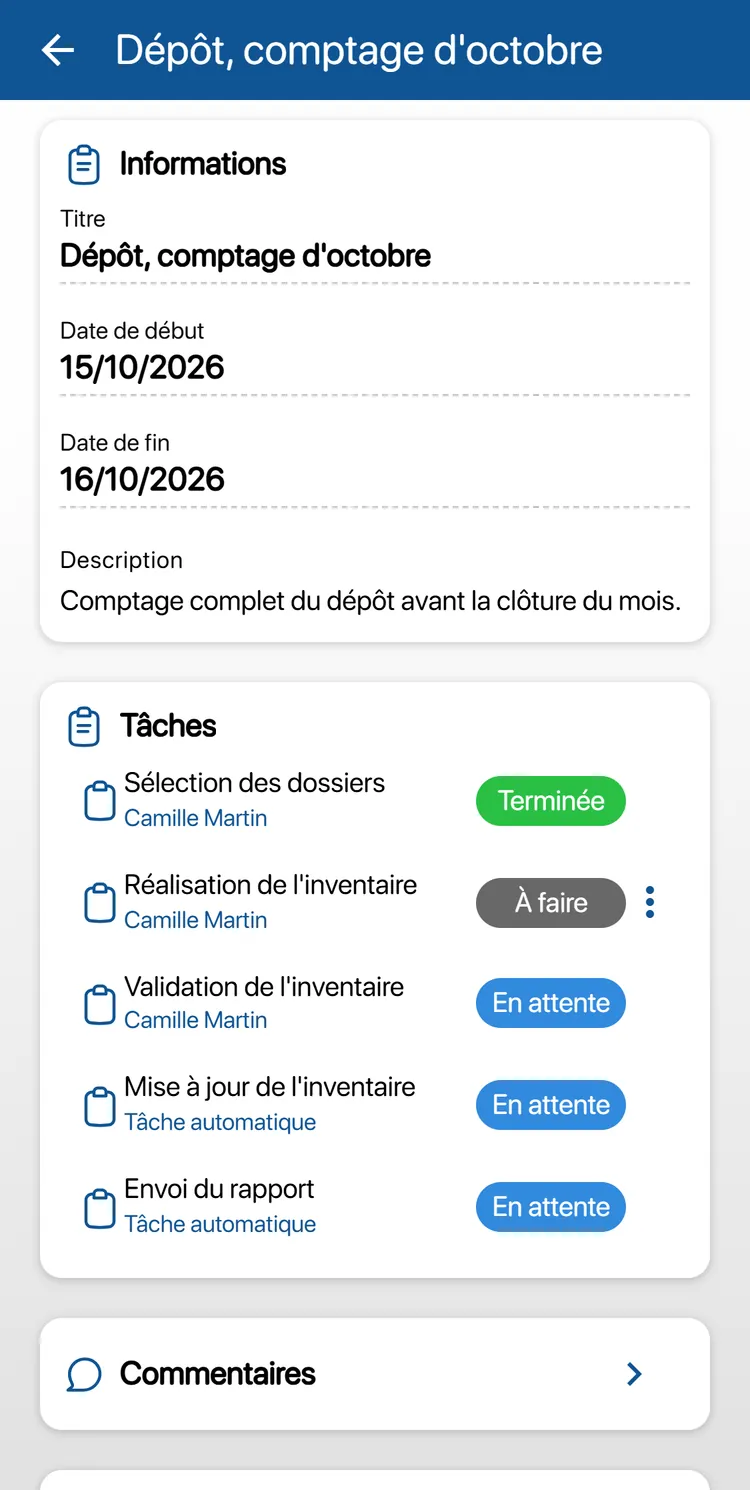
Inventory
You count the items in the chosen folders. Example: “Depot, October count”.
- Folder selection: On the web platform
- Carrying out the inventory: You, on the phone
- Inventory validation: On the web platform
- Inventory update: Automatic
- Report sent: Automatic
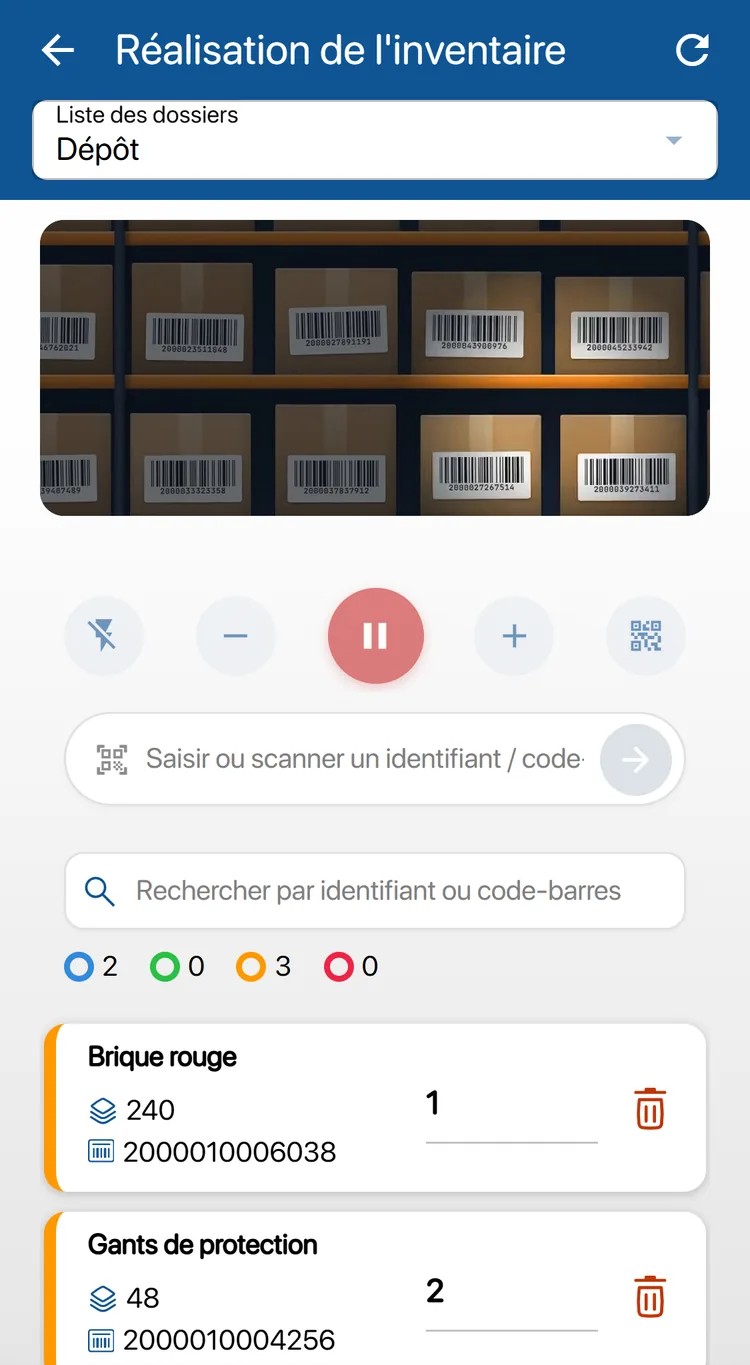
Continuous scanning
Aim, the app keeps going
The camera stays open during the task: you aim at the codes one after another, without tapping each time. Each read is confirmed by a beep and a vibration; an item scanned again gains one unit, an expected piece of equipment turns green.
Torch, zoom, pause, QR code mode and manual entry. Scanning can be made mandatory for a stock out.
Something unexpected?
Suspend the task with a reason, reopen it later. Comments and the activity log keep a record.
Maintenance, inspection, installation: create your own operations
Create your own operation template on the K inventory web platform. On the phone, the operator scans the equipment and fills in the inspection form, even without a network. The report is sent automatically.
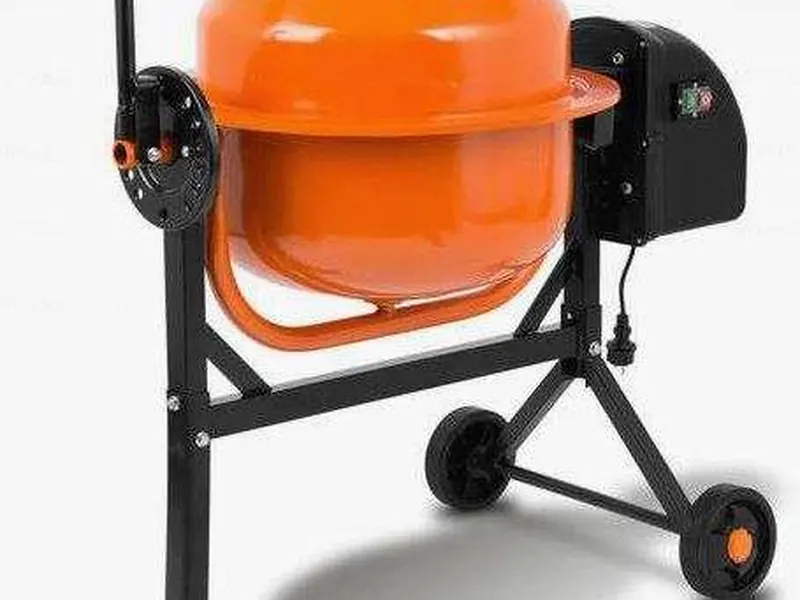
Example: the maintenance check of a concrete mixer
A three-task template. The first two are done on the phone, the third is sent on its own.
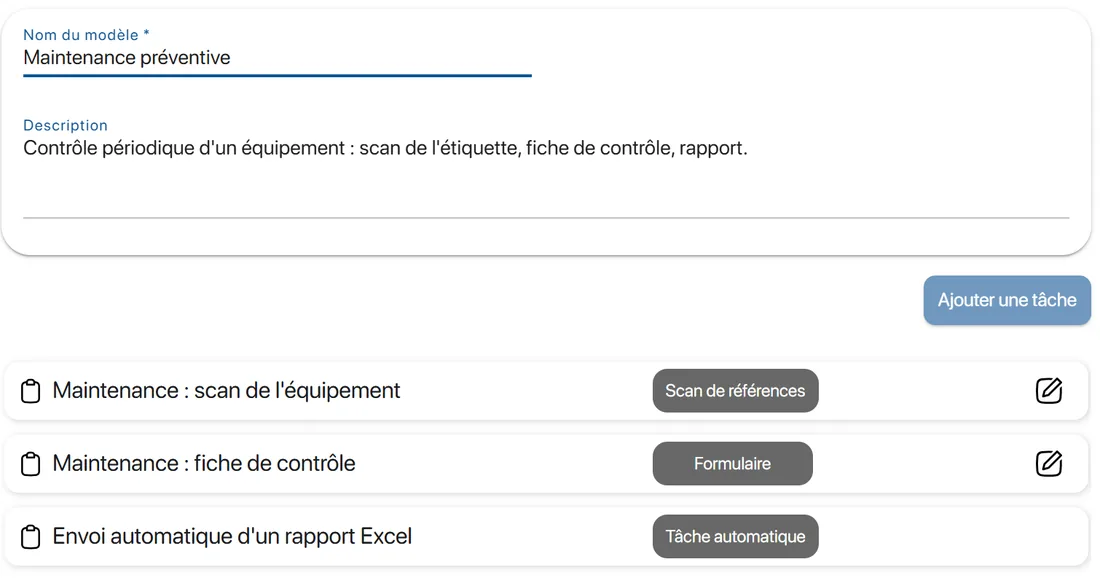
- Equipment scan: The operator, on the phone
- Inspection form: The operator, on the phone
- Automatic sending of an Excel report: Automatic
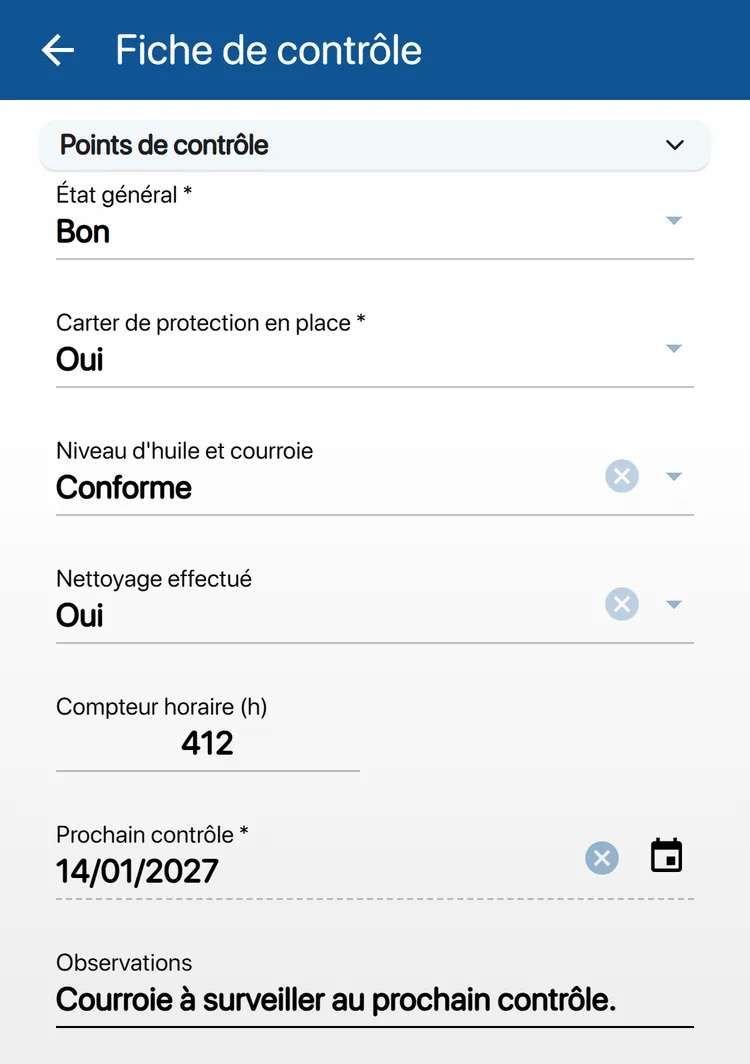
In this inspection form: general condition, protective guard in place, oil level and belt, cleaning done, hour meter, next inspection date, remarks.
A fully customisable template, and others for every need
You choose the tasks, their order, which ones are mandatory and which ones are shown on the phone.
Drop-down list, number, date, text: you decide what the operator fills in, and what is mandatory.
Create the operations suited to your business, on the same principle.
- Periodic inspection
- Installation
- Incident report
- Your own
Basement, stockroom, remote worksite: your operations run offline
Without a network, K inventory operations carry on: tasks are saved on the phone, then sent in order when the network returns.
Network
1. Before you leave
Your operations are on the phone
They are downloaded while you have a network, along with their tasks.
- Stock out, Leclerc worksite
- Move, tools
- Depot inventory
No network
2. On site, without a network
You carry out your tasks
Scans, quantities and forms are kept on the device.
Waiting to be sent, on the phone
Network
3. When the network returns
Everything is sent, in order
Nothing is lost: everything is sent in the order you did it.
- Stock out, Leclerc worksite
- Move, tools
- Depot inventory
Without a network, only the Operations menu is available. The app shows how old your data is and prompts you to reconnect to refresh it.
A complete solution: the mobile app for field operations, the web platform for management
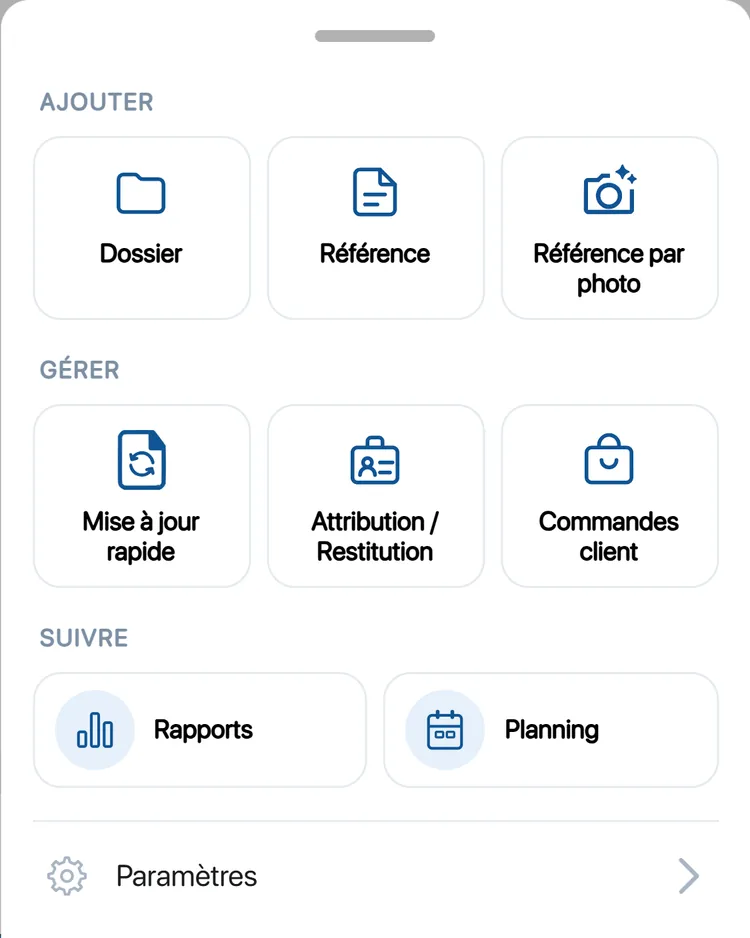
K inventory is not just a mobile app: it is a complete solution, with a web platform to configure, plan and manage, and an app to execute in the field.
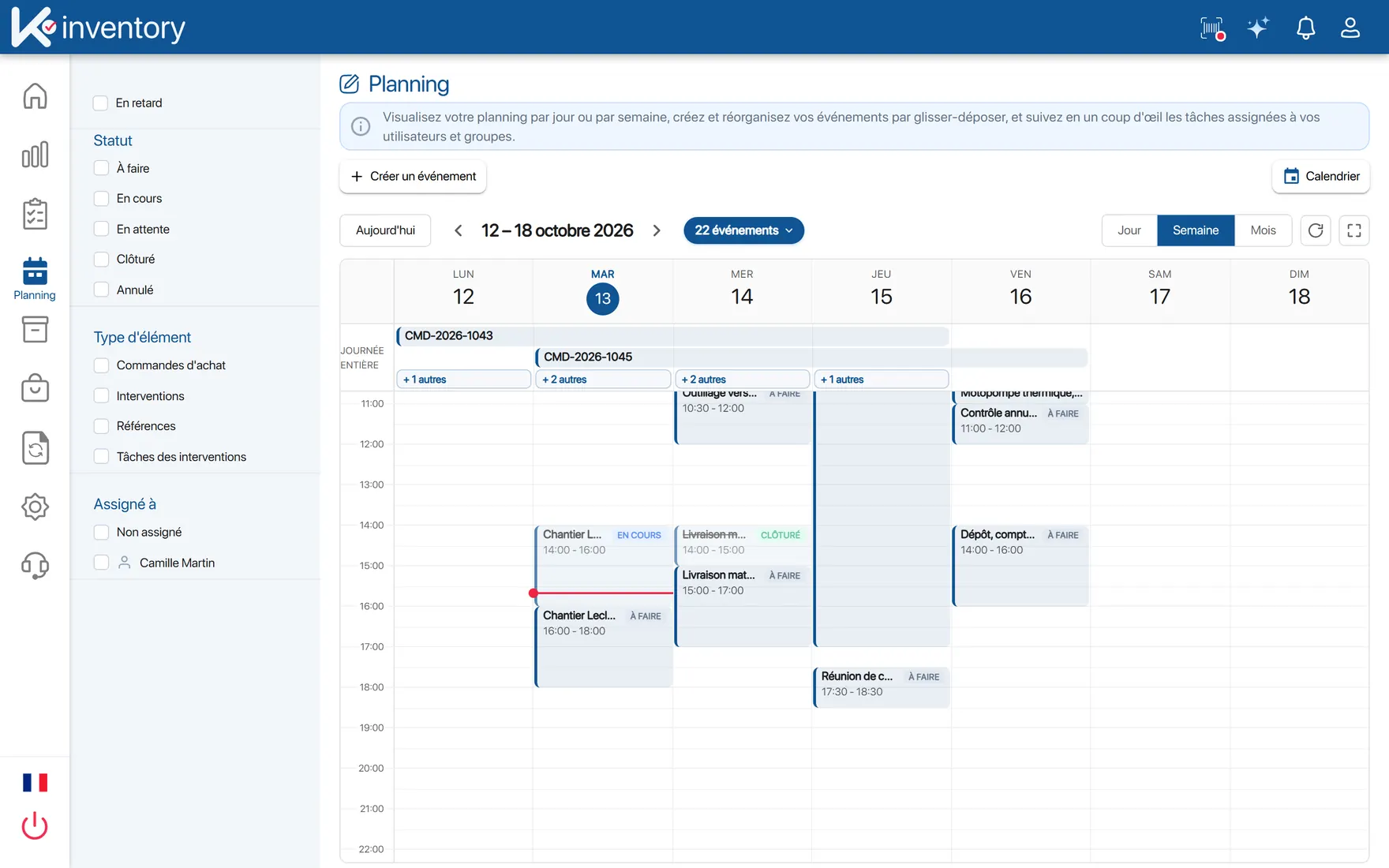
One task, seen from both sides: scheduled on the web, carried out on the phone.
On the web platform: configure, plan, manage
- Users, groups and access rights, by feature and by folder
- Categories, custom fields and custom forms
- Operations: creation, assignment and operation templates
- Schedule by day, week or month, by user or by group
- Reports: dashboards you build yourself
- Excel import and export, label printing, custom notifications
On mobile: scan, carry out, validate
- Barcode and QR code scanning with the camera
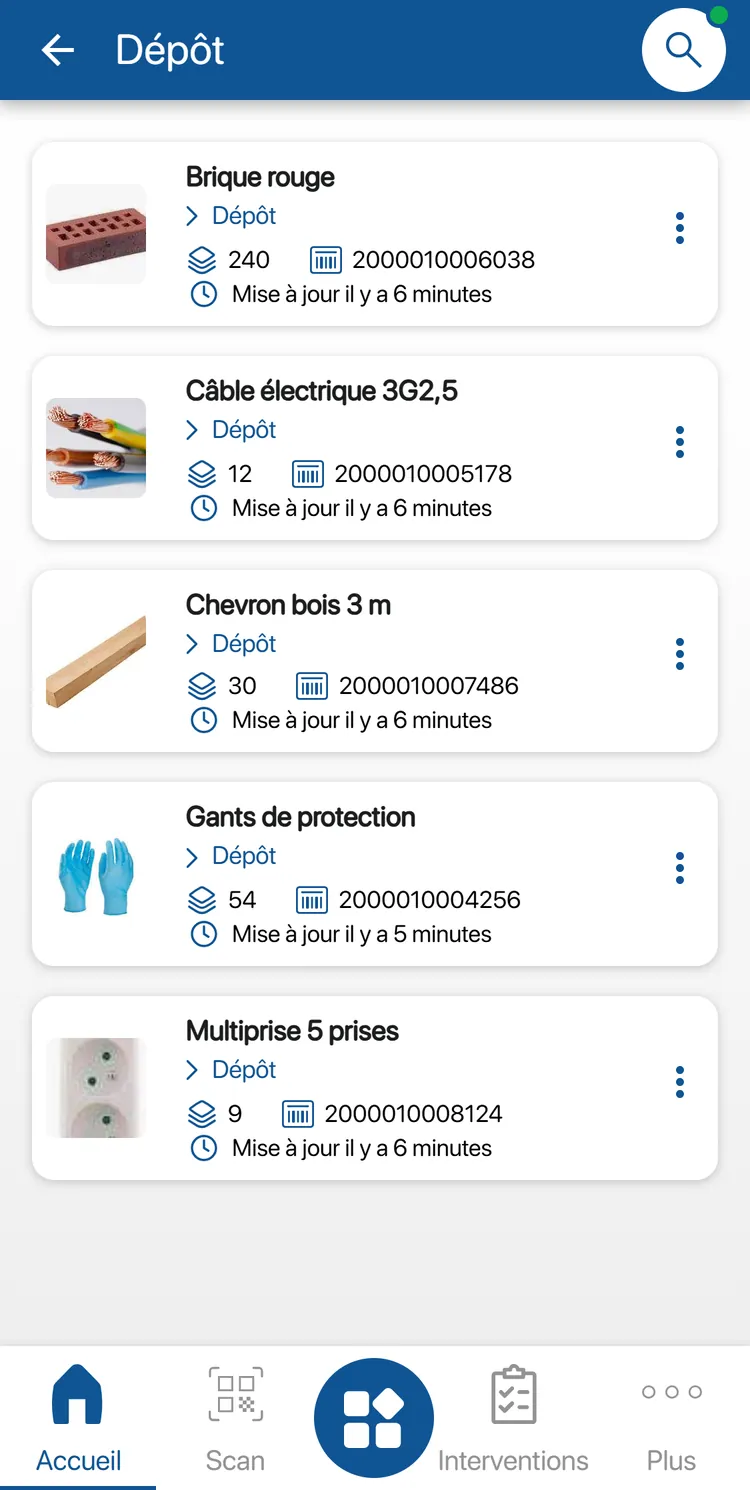
- Stock in, stock out, moves and inventories
- Equipment assignment and return
- Operation tasks, even without a network
- Customer order picking
- Item creation, including from a photo
Frequently asked questions about the K inventory mobile app
Is K inventory only a mobile app?
No. K inventory is a complete solution, web and mobile. The web platform is used to configure and manage: users and rights, custom fields and forms, operation templates, schedule, reports. The mobile app is for the field: scanning, recording stock in and stock out, taking inventory, assigning equipment and carrying out operations.
Can you manage an equipment fleet with the app?
Yes. In K inventory, an item is a product or a piece of equipment. A piece of equipment can be assigned to a person and then returned, moved from one site to another and inventoried, and it keeps its history. Arrivals can go through the stock in operation, called “Receipt of order” in the app.
Can you do maintenance with the K inventory app?
Yes, with a custom operation. On the web platform, you create your maintenance template: a scan task, an inspection form, then the automatic sending of an Excel report. On their phone, the operator scans the equipment and fills in the form. The template is fully customisable.
What is a custom operation?
In K inventory, a custom operation is an operation template you create yourself on the web platform, from tasks: item scan, form, automatic sending of an Excel report. You can create other templates suited to your context: inspections, installations, incident reports. The operator carries out the scan and form tasks on mobile.
Does the K inventory app work offline?
Yes, for operations, custom ones included. They are downloaded to the phone, you carry out your tasks without a network (scans, quantities, forms), and everything is queued, then sent in order when the network returns. Offline, only the Operations menu is available. The app tells you how old your data is.
Do you need a handheld scanner or a dedicated device to scan?
No. With K inventory, the smartphone camera reads barcodes and QR codes continuously, with torch, zoom, pause and tap to focus. Each read is confirmed by a beep and a short vibration. If you prefer, Bluetooth handheld scanners are also supported.
Is K inventory available on iPhone and Android?
Yes. K inventory can be downloaded from the App Store for iPhone and from Google Play for Android. The interface is available in French and English. A K inventory account is required to sign in, and you can sign in with a Google or Microsoft account.
Can you try K inventory for free?
Yes. K inventory offers a 14-day free trial, with no commitment and no credit card. The number of users is unlimited; the number of items depends on your plan. You can sign up directly in the app. Some functions are modules enabled depending on your plan. You can also book a personalised 45-minute demo, with no commitment.
How do you find one label among dozens with the camera?
In the K inventory app, enter the code you are looking for, then sweep the labels with the camera. Each code read is highlighted in red if it does not match and in green when it is the right one, with a sound and a vibration. The search is based on the barcode, not on the label's name, and does not show a location.
How does customer order picking work?
In K inventory, the order comes from the web platform or from a connected shop such as WooCommerce. On the order screen, the camera stays active: a correct code counts as one item picked, a code that is not in the order is rejected with an error sound. You can save a partial preparation, then ship. Module enabled depending on your plan.
Try K inventory free for 14 days: the web platform and the app, together
Create your account, set up your folders on the web, then head out to scan in the field with your phone.
- 14 days
- No commitment
- No credit card
- Unlimited users